
Asset Relations and Multiple Camera Angles
Asset relations provide a way to link assets together, and in this guide, we will use asset relations to support a multiple camera-angle feature. This feature allows end users to watch content (such as a concert or sports event) from different camera angles. For example, during a soccer match, viewers can have their own perspective when the referee uses VAR (Video Assistant Referee).
Note that there are multiple ways to solve this issue, but using camera angles is a suitable approach considering the integration in the workflow.
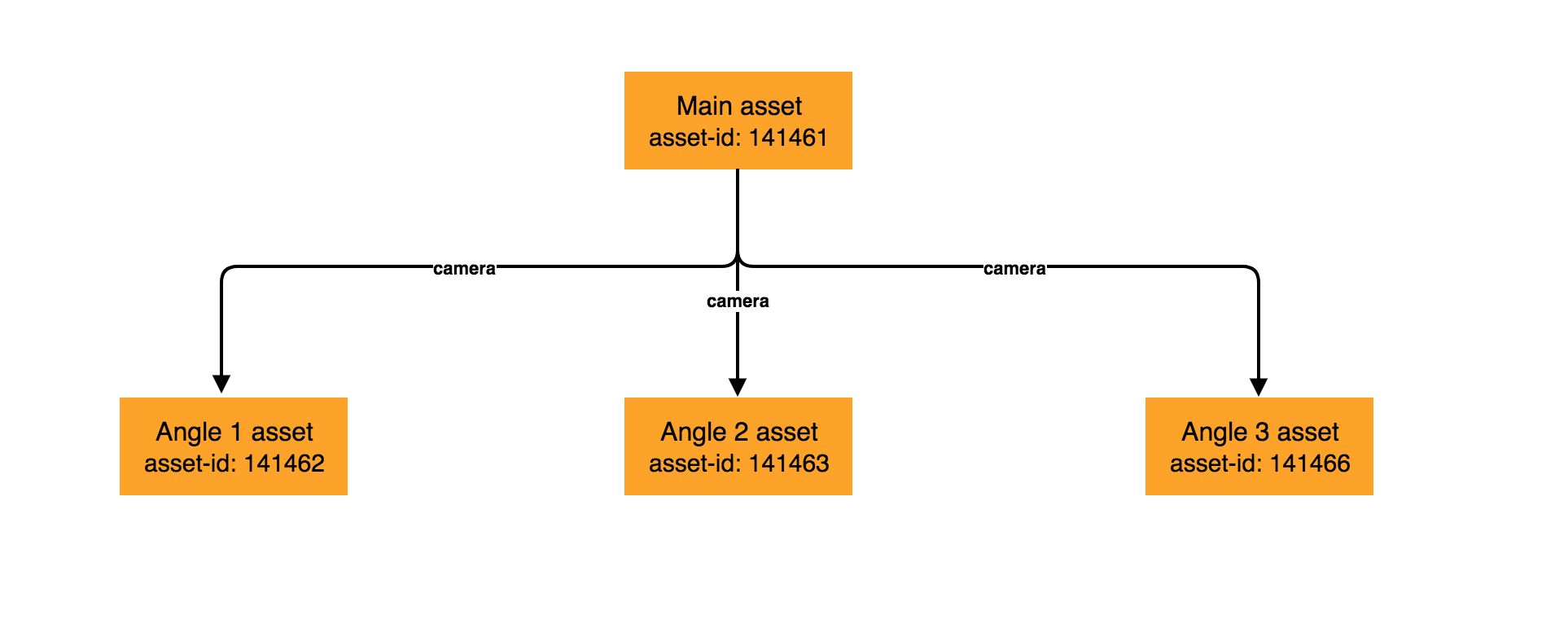
In our example we will consider the following:
Main asset: The is the main asset, our entry point while fetching contentAngle 1Angle 2Angle 3: Assets of the same content but using different camera angles
To achieve this we are going to undertake the following steps:
- Create all the assets needed
- Create the asset relations
- Publish the assets
- Search for the main asset
Create the Assets
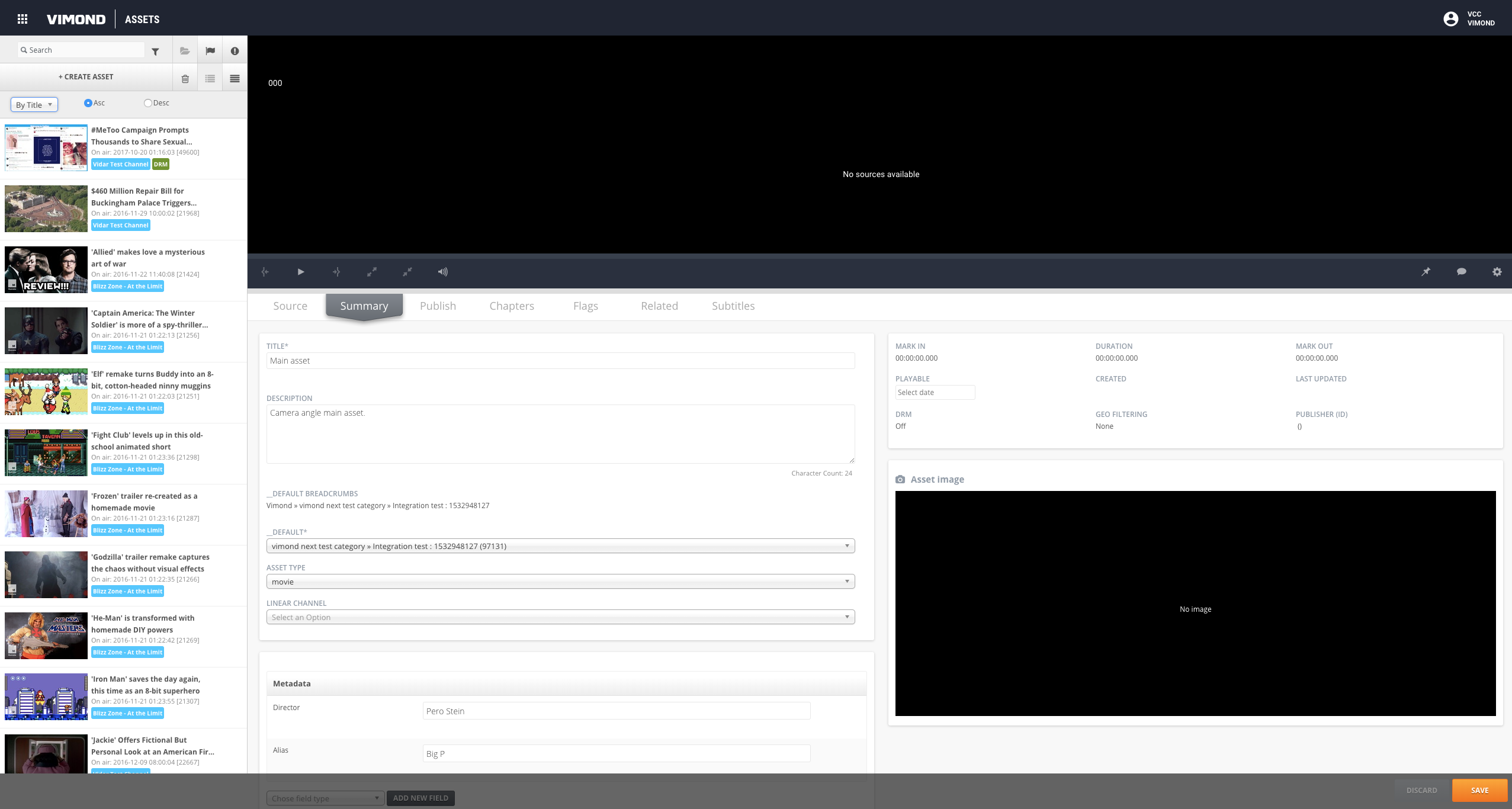
Section titled “Create the Assets”To create the assets, we will simply use VCC and create empty assets.
Create the Asset Relations
Section titled “Create the Asset Relations”At the moment, VCC does not support creating relations between assets. Therefore, we will use the Vimond Rest API service to create them.
Relation Types
Section titled “Relation Types”The first thing to do is to create a new relationship, you can query the existing list of types using the GET /api/assetRelations/types endpoint.
curl -X GET \ https://vimond-rest-api.{domain}/api/assetRelations/types \ -H 'Accept: application/json;v=3' \ -H 'Content-Type: application/json;V=3'Now let’s create a new relation name camera. Note that your user will need the permission assetrelation:TYPES_WRITE.
curl -X PUT \ https://{tenant}.rest-api.{region}.vmnd.tv/api/assetRelations/type/camera \ -H 'Authorization: Bearer {admin_bearer_token}'Now we can list the existing asset relation types:
{ "assetRelationTypes": [ { "id": 5, "name": "camera" } ]}Asset Relations
Section titled “Asset Relations”Once the asset relation type has been created we can start creating the relations.
curl -X POST \  https://{tenant}.rest-api.{region}.vmnd.tv/api/assetRelations/relations \  -H 'Accept: application/json;v=3' \  -H 'Authorization: Bearer {admin_bearer_token}' \  -H 'Content-Type: application/json;V=3' \  -d '{  "fromAssetId": 141461,  "toAssetId": 141462,  "name": "Camera angle 1",  "priority": 1,  "relationType": "camera"}'

curl -X POST \  https://{tenant}.rest-api.{region}.vmnd.tv/api/assetRelations/relations \  -H 'Accept: application/json;v=3' \  -H 'Authorization: Bearer {admin_bearer_token}' \  -H 'Content-Type: application/json;V=3' \  -d '{  "fromAssetId": 141461,  "toAssetId": 141463,  "name": "Camera angle 2",  "priority": 2,  "relationType": "camera"}'

curl -X POST \  https://{tenant}.rest-api.{region}.vmnd.tv/api/assetRelations/relations \  -H 'Accept: application/json;v=3' \  -H 'Authorization: Bearer {admin_bearer_token}' \  -H 'Content-Type: application/json;V=3' \  -d '{  "fromAssetId": 141461,  "toAssetId": 141466,  "name": "Camera angle 3",  "priority": 3,  "relationType": "camera"}'
The body takes the following structure:
fromAssetId: The ID of the main asset (parent asset).ToAssetId: The ID of the related asset (camera angle).name: A name for the relation (e.g., “Camera angle 1”).priority: The priority of the related asset (1 being higher than 2).relationType: The relation type created earlier.
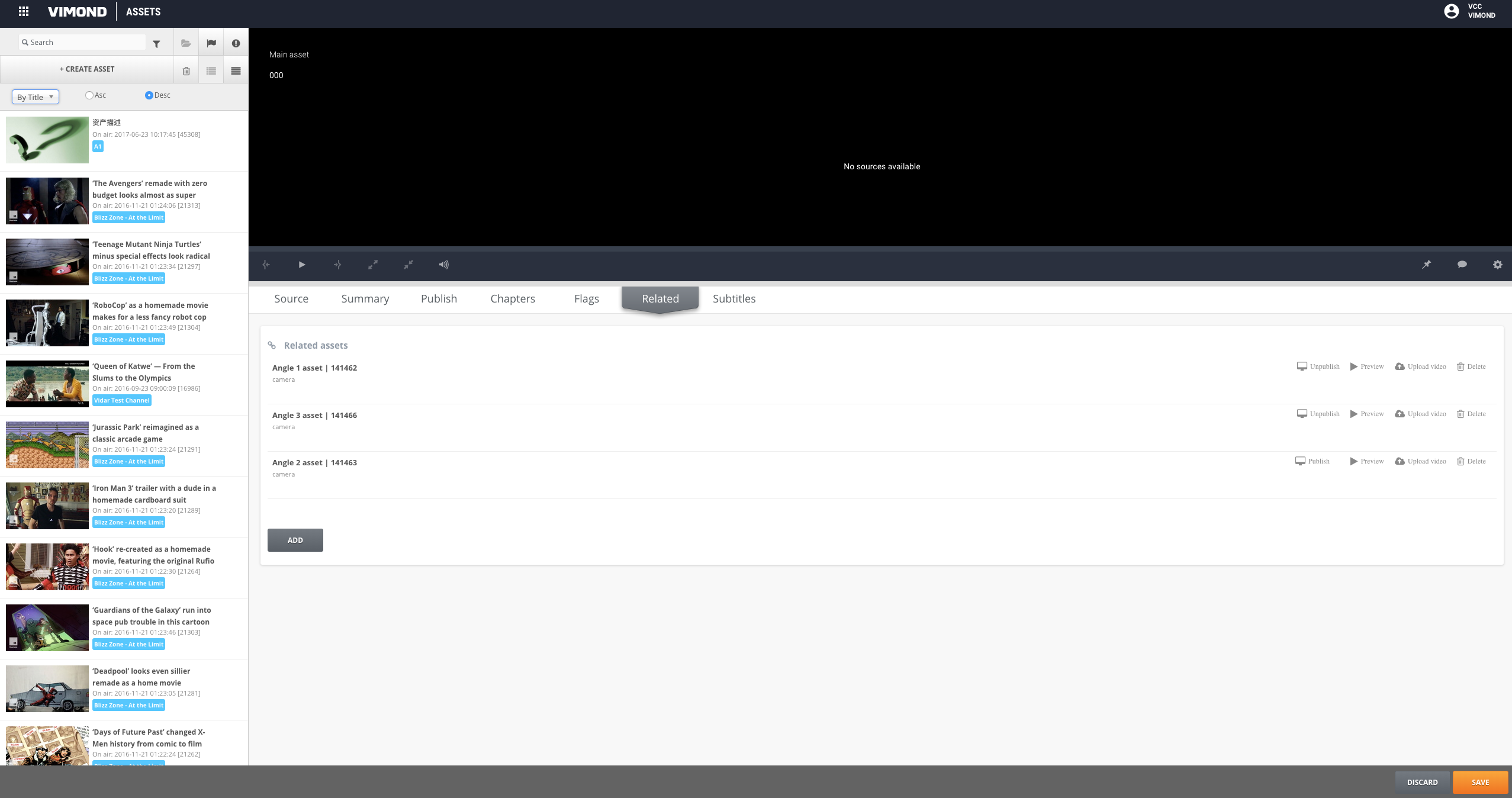
After creating the relations, the related assets should become visible in the VIA UI, although there might be some caching delay before they appear
Publish the Assets
Section titled “Publish the Assets”This can be done simply by using the VIA UIs.
Search for the Main Asset
Section titled “Search for the Main Asset”Perform a lookup for the main asset to see the related assets and their relationship information. Use the following cURL command.
curl -X GET \ https://{tenant}.content-discovery.cf.{domain}/api/v1/assets/141461{ "data": [ { "id": "141461", "title": "Main asset", "timestamp": "2018-07-31T10:30:10Z", "createTime": "2018-07-31T07:48:56Z", "category": { "link": "https://{tenant}.content-discovery.{domain}/api/v1/categories/97131", "id": "97131" }, "labeledAsFree": false, "drmProtected": false, "duration": 0, "assetType": "movie", "isLive": false, "transmissionTime": "2018-07-31T07:48:56Z", "relatedAssets": [ { "id": 141462, "name": "Camera angle 1", "relationType": "camera" }, { "id": 141463, "name": "Camera angle 2", "relationType": "camera" }, { "id": 141466, "name": "Camera angle 3", "relationType": "camera" } ], "description": "Camera angle main asset.", "description-short": "Camera angle main asset.", "director": "Pero Stein", "alias": "Big P" } ]}By following these steps, you have successfully created an asset with multiple camera angles.