

Feed Ingest
Feed Ingest offers a comprehensive and efficient solution for ingesting various data types, including metadata, video files, audio files, images, closed captions & subtitles, license & publishing data, geo-blocking data, timeline & ad-markers.
With Feed Ingest, you can easily import and manage all these different data components in a single process, ensuring seamless integration into the system. By leveraging batch processing and bulk data ingestion capabilities, it minimizes the number of API calls required, optimizing performance and reducing latency.
The built-in data validation mechanisms ensure data accuracy and integrity, preventing the ingestion of invalid or improperly formatted data. Additionally, robust error handling and reporting features help identify and address issues during the ingestion process
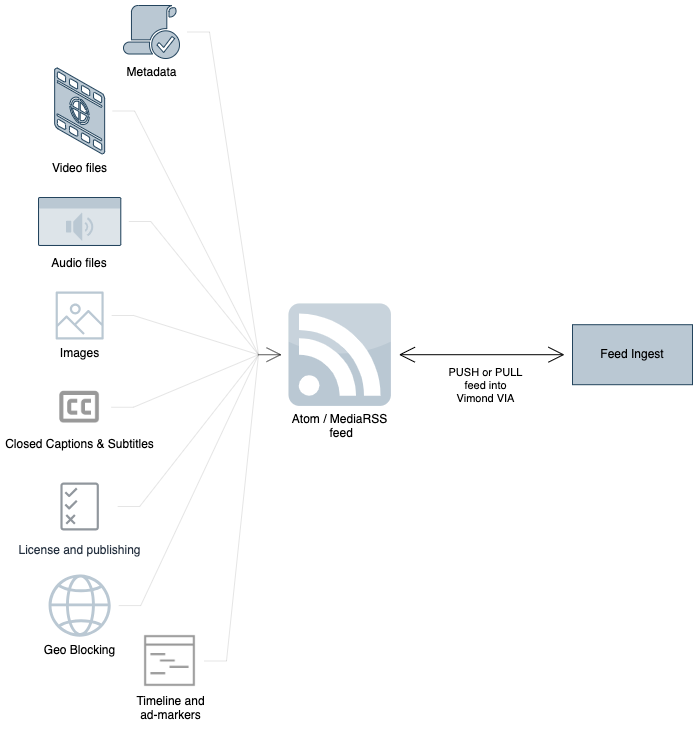
Vimond provides two models for content ingest: the Poll model and the Push model.
Poll Model:
- In the Poll model, you set up a scheduled interval (e.g., daily, hourly, every minute) for checking your feed for changes.
- The feed’s update timestamp is checked to determine if it has changed since the last run.
- If the feed is marked as updated, each feed entry item is examined to identify new assets or existing assets that have been updated.
Push Model:
- The Push model allows you to avoid delays associated with the Poll model by pushing changes to a unique HTTP endpoint provided by Vimond.
- You can push changes to the endpoint at any time, and the content will be ingested immediately.
Events Supported:
- The feed format supports CREATE, UPDATE, and DELETE events, including scheduling future events such as PUBLISH and UNPUBLISH.
Handling Failures:
- If any import job encounters an error, an email report can be sent to the publisher, notifying them of the issue and providing guidance for resolution.
- Error email reports can also be sent if errors occur during video download, transcoding, archiving, or distribution.
Categories:
- When importing assets into the Vimond Platform, it’s important to specify the category for each asset.
- The feed can either assign a specific category for all content or provide category information for each asset.
- Category information is provided using an
external-category-idstring, which can be a valid Vimond category-id or a value used to find the category via category-metadata lookup.
Assets:
- For each asset, it is necessary to determine whether it is an update to an existing asset or a new asset creation.
- The linking between the external source and the internal Vimond Asset is achieved using asset-metadata, specifically the metadata-name called
external-asset-id. - The
external-asset-idvalue from the external source is stored as metadata-value with the name external-asset-id on the created asset.
By following the guidelines for feed ingest, you can easily import content into the Vimond Platform, ensuring synchronization, availability, and automation for your editorial team to work on the content and publish it to various platforms and devices for end-user consumption.
Feed Formats and required fields
Section titled “Feed Formats and required fields”- Both Atom and RSS formats are supported, and they include a custom Vimond namespace extension for ingesting metadata.
- The feed should include fields such as title, link, updated, and entry/item for each asset.
- Required fields for each asset include id, title, updated, description, category, image-url, and video-url.
For both Push and Poll, we support the same XML-based file formats described below.
Both RSS and Atom support a custom Vimond namespace extension allowing you to ingest any metadata.
<?xml version="1.0" encoding="UTF-8"?><feed xmlns="http://www.w3.org/2005/Atom"      xmlns:media="http://search.yahoo.com/mrss/"      xmlns:vimond="http://www.vimond.com/vimondFeedExtension/1.0">
    <!-- title of your feed -->    <title>Vimond Asset Importer Service Atom Example</title>
    <!-- link to your feed -->    <link href="http://www.contentprovider.com/my-atom-feed.xml" rel="self" />
    <!-- When was feed last published / updated -->    <updated>2018-01-01T18:30:02Z</updated>
    <entry>       ...    </entry>
</feed><?xml version="1.0" encoding="UTF-8"?><rss xmlns:vimond="http://www.vimond.com/vimondFeedExtension/1.0" version="2.0"> <channel>
<!-- title of your feed --> <title>Vimond Asset Importer Service RSS Example</title>
<!-- link to your feed --> <link>http://www.contentprovider.com/my-atom-feed.xml</link>
<!-- When was feed last published / updated --> <pubDate>Sun, 01 Jan 2015 19:45:00 GMT</pubDate>
<description>Vimond Asset Export Description</description>
<item> ... </item>
</channel></rss>You can add/update multiple assets by adding an entry (Atom) or item (RSS) for each asset.
For each asset the following fields are expected:
| Field | Atom | RSS |
|---|---|---|
| id * | id | guid |
| title * | title | title |
| updated * | updated | pubDate |
| description | content | description |
| category | category @term | category |
| image-url | media:group / media:thumbnail @url | enclosure @url @type=”image/any” |
| video-url | media:group / media:content @url @type=”video/any” | enclosure @url @type=”video/any” (optional: @length) |
| Additional | We support all Media-RSS media:content-fields (http://www.rssboard.org/media-rss#media-content) |
”*” = Required entry/item fields
Example feeds
<?xml version="1.0" encoding="UTF-8"?><feed xmlns="http://www.w3.org/2005/Atom"      xmlns:media="http://search.yahoo.com/mrss/"      xmlns:vimond="http://www.vimond.com/vimondFeedExtension/1.0">
    <!-- title of your feed -->    <title>Vimond Asset Importer Service Atom Example</title>
    <!-- link to your feed -->    <link href="http://www.contentprovider.com/my-atom-feed.xml" rel="self" />
    <!-- When was feed last published / updated -->    <updated>2018-01-01T18:30:02Z</updated>
    <entry>        <!-- unique video id in your system -->        <id>my-unique-video-id-1</id>
        <!-- Title of video -->        <title>The video title</title>
        <!-- description of video -->        <content type="text">The video description</content>
        <!-- (optional) Can be used for mapping external category to Vimond category -->        <category scheme="http://www.contentprovider.com/schemas/categories" term="sport" label="Sport and Leisure" />
        <!-- When was the video (or its metadata) last published / updated -->        <updated>2018-01-01T18:30:02Z</updated>
        <!-- custom vimond metadata -->        <vimond:metadata name="title">The video title</vimond:metadata>        <vimond:metadata name="genre">Sport</vimond:metadata>        <vimond:metadata name="sub-genres">Football</vimond:metadata>        <vimond:metadata name="description-long">A longer description of the asset...</vimond:metadata>        <vimond:metadata name="description-short">A short description of the asset...</vimond:metadata>        <vimond:metadata name="episode">1</vimond:metadata>        <vimond:metadata name="season">1</vimond:metadata>        <vimond:metadata name="parental-guidance">TV-G</vimond:metadata>        <vimond:metadata name="parental-guidance-sub">L (Language)</vimond:metadata>        <vimond:metadata name="production-year">2015</vimond:metadata>        <vimond:metadata name="hd">HD</vimond:metadata>        <vimond:metadata name="original-air-date">2015-01-26T14:26:11-04:00</vimond:metadata>        <vimond:metadata name="actors">Name of actors</vimond:metadata>        <vimond:metadata name="age-limit">10</vimond:metadata>        <vimond:metadata name="asset-length">375</vimond:metadata>        <vimond:metadata name="original-language">English</vimond:metadata>        <vimond:metadata name="producer">Name of producer</vimond:metadata>        <vimond:metadata name="spoken-languages">English</vimond:metadata>        <vimond:metadata name="synopsis">Synopsis goes here...</vimond:metadata>        <vimond:metadata name="tags">tags, goes, here</vimond:metadata>
        <media:group>            <!-- thumbnail or cover art -->            <media:thumbnail url="http://www.contentprovider.com/images/2657925.jpeg" width="320" height="200" />            <!-- video file -->            <media:content url="http://www.contentprovider.com/videos/2657925.mpg" type="video/mpeg">                <!-- only md5 hash is supported -->                <media:hash>d04a82982f4c7d9895c8f5ae52b8f1560</media:hash>            </media:content>        </media:group>
    </entry>
<entry> <id>my-unique-video-id-2</id> <title>Another video</title> <content type="text">This video is great!</content> <category scheme="http://www.contentprovider.com/schemas/categories" term="sport" label="Sport and Leisure" /> <updated>2018-01-01T18:30:02Z</updated> <vimond:metadata name="title">The video title</vimond:metadata> <vimond:metadata name="genre">Sport</vimond:metadata> <vimond:metadata name="sub-genres">Football</vimond:metadata> <vimond:metadata name="description-long">A longer description of the asset...</vimond:metadata> <vimond:metadata name="description-short">A short description of the asset...</vimond:metadata> <vimond:metadata name="episode">2</vimond:metadata> <vimond:metadata name="season">1</vimond:metadata> <vimond:metadata name="parental-guidance">TV-G</vimond:metadata> <vimond:metadata name="parental-guidance-sub">L (Language)</vimond:metadata> <vimond:metadata name="production-year">2015</vimond:metadata> <vimond:metadata name="hd">HD</vimond:metadata> <vimond:metadata name="original-air-date">2015-01-26T14:26:11-04:00</vimond:metadata> <vimond:metadata name="actors">Name of Actors</vimond:metadata> <vimond:metadata name="age-limit">10</vimond:metadata> <vimond:metadata name="asset-length">375</vimond:metadata> <vimond:metadata name="original-language">English</vimond:metadata> <vimond:metadata name="producer">Name of producer</vimond:metadata> <vimond:metadata name="spoken-languages">English</vimond:metadata> <vimond:metadata name="synopsis">Synopsis goes here</vimond:metadata> <vimond:metadata name="tags">tags, goes, here</vimond:metadata> <media:group> <media:thumbnail url="http://www.contentprovider.com/images/image.jpeg" width="320" height="200" /> <media:content url="http://www.contentprovider.com/videos/video.mpg" type="video/mpeg" /> </media:group> </entry></feed><?xml version="1.0" encoding="UTF-8"?><rss xmlns:vimond="http://www.vimond.com/vimondFeedExtension/1.0" version="2.0"> <channel>
<!-- title of your feed --> <title>Vimond Asset Importer Service RSS Example</title>
<!-- link to your feed --> <link>http://www.contentprovider.com/search/100?size=5</link>
<!-- When was feed last published / updated --> <pubDate>Sun, 01 Jan 2015 19:45:00 GMT</pubDate>
<description>Vimond Asset Export Description</description>
<item> <!-- Title of video --> <title>The video title</title>
<!-- description of video --> <description>The video description</description>
<!-- (optional) Can be used for mapping external category to Vimond category --> <category>sport</category>
<!-- unique video id in your system --> <guid>my-unique-video-id-1</guid>
<!-- When was the video (or its metadata) last published / updated --> <pubDate>Sun, 01 Jan 2015 19:45:00 GMT</pubDate>
<!-- thumbnail or cover art --> <enclosure url="http://www.contentprovider.com/images/2657925.jpeg" type="image/jpeg" />
<!-- video file --> <enclosure url="http://www.contentprovider.com/videos/2657925.mpg" type="video/mpeg" > <!-- only md5 hash is supported --> <vimond:hash>d04a82982f4c7d9895c8f5ae52b8f1560</vimond:hash> </enclosure>
<!-- custom vimond metadata --> <vimond:metadata name="title">The video title</vimond:metadata> <vimond:metadata name="genre">Sport</vimond:metadata> <vimond:metadata name="sub-genres">Football</vimond:metadata> <vimond:metadata name="description-long">A longer description of the asset...</vimond:metadata> <vimond:metadata name="description-short">A short description of the asset...</vimond:metadata> <vimond:metadata name="episode">1</vimond:metadata> <vimond:metadata name="season">1</vimond:metadata> <vimond:metadata name="parental-guidance">TV-G</vimond:metadata> <vimond:metadata name="parental-guidance-sub">L (Language)</vimond:metadata> <vimond:metadata name="production-year">2015</vimond:metadata> <vimond:metadata name="hd">HD</vimond:metadata> <vimond:metadata name="original-air-date">2015-01-26T14:26:11-04:00</vimond:metadata> <vimond:metadata name="actors">Name of actors</vimond:metadata> <vimond:metadata name="age-limit">10</vimond:metadata> <vimond:metadata name="asset-length">375</vimond:metadata> <vimond:metadata name="original-language">English</vimond:metadata> <vimond:metadata name="producer">Name of producer</vimond:metadata> <vimond:metadata name="spoken-languages">English</vimond:metadata> <vimond:metadata name="synopsis">Synopsis goes here...</vimond:metadata> <vimond:metadata name="tags">tags, goes, here</vimond:metadata>
</item> <item> <title>Another video</title> <description>This video is great!</description> <category>sport</category> <guid>2657926</guid> <pubDate>Sun, 01 Jan 2015 19:45:00 GMT</pubDate> <enclosure url="http://www.contentprovider.com/images/the-image.jpeg" type="image/jpeg" /> <enclosure url="http://www.contentprovider.com/videos/a-video.mpg" type="video/mpeg" /> <vimond:metadata name="title">The video title</vimond:metadata> <vimond:metadata name="genre">Sport</vimond:metadata> <vimond:metadata name="sub-genres">Football</vimond:metadata> <vimond:metadata name="description-long">A longer description of the asset...</vimond:metadata> <vimond:metadata name="description-short">A short description of the asset...</vimond:metadata> <vimond:metadata name="episode">1</vimond:metadata> <vimond:metadata name="season">1</vimond:metadata> <vimond:metadata name="parental-guidance">TV-G</vimond:metadata> <vimond:metadata name="parental-guidance-sub">L (Language)</vimond:metadata> <vimond:metadata name="production-year">2015</vimond:metadata> <vimond:metadata name="hd">HD</vimond:metadata> <vimond:metadata name="original-air-date">2015-01-26T14:26:11-04:00</vimond:metadata> <vimond:metadata name="actors">Name of actors</vimond:metadata> <vimond:metadata name="age-limit">10</vimond:metadata> <vimond:metadata name="asset-length">375</vimond:metadata> <vimond:metadata name="original-language">English</vimond:metadata> <vimond:metadata name="producer">Name of producer</vimond:metadata> <vimond:metadata name="spoken-languages">English</vimond:metadata> <vimond:metadata name="synopsis">Synopsis goes here...</vimond:metadata> <vimond:metadata name="tags">tags, goes, here</vimond:metadata> </item> </channel></rss>How to update an existing Vimond Asset?
Section titled “How to update an existing Vimond Asset?”To update an existing Vimond Asset, you can use the Feed Ingest service by reusing the entry:id value of the asset and providing updated metadata, images, and/or video files.
Here is an example of an Atom feed XML format:
<?xml version="1.0" encoding="UTF-8"?><feed xmlns="http://www.w3.org/2005/Atom"      xmlns:media="http://search.yahoo.com/mrss/"      xmlns:vimond="http://www.vimond.com/vimondFeedExtension/1.0">
    <!-- Title of your feed -->    <title>Vimond Asset Importer Service Atom Example</title>
    <!-- Link to your feed -->    <link href="http://www.contentprovider.com/my-atom-feed.xml" rel="self" />
    <!-- Ensure the timestamp is updated since the last run -->    <updated>2022-01-01T18:30:02Z</updated>
    <entry>        <!-- Unique video ID in your system -->        <id>my-unique-video-id-1</id>
        <!-- Title of the video -->        <title>The video title</title>
        <!-- Ensure the timestamp is updated since the last run -->        <updated>2022-01-01T18:30:02Z</updated>
        ....        Include updated metadata, video, audio, or images        ....
    </entry></feed>
If you don’t know the original entry:id value used for the asset or the asset was not created with Feed Ingest, you can use the <vimond:assetId> field to specify the Vimond Asset ID and override the entry:id field. This allows you to update an existing asset.
Here is an example that demonstrates using <vimond:assetId>:
<?xml version="1.0" encoding="UTF-8"?><feed xmlns="http://www.w3.org/2005/Atom"      xmlns:media="http://search.yahoo.com/mrss/"      xmlns:vimond="http://www.vimond.com/vimondFeedExtension/1.0">
    <!-- Title of your feed -->    <title>Vimond Asset Importer Service Atom Example</title>
    <!-- Link to your feed -->    <link href="http://www.contentprovider.com/my-atom-feed.xml" rel="self" />
    <!-- Ensure the timestamp is updated since the last run -->    <updated>2022-01-01T18:30:02Z</updated>
    <entry>        <!-- Unique video ID in your system -->        <id>my-unique-video-id-1</id>
        <!-- ID of the Vimond asset you wish to update -->        <vimond:assetId>332405</vimond:assetId>
        <!-- Title of the video -->        <title>The video title</title>
        <!-- Ensure the timestamp is updated since the last run -->        <updated>2022-01-01T18:30:02Z</updated>
        ....        Include updated metadata, video, audio, or images        ....
    </entry></feed>
By reusing the entry:id or providing the <vimond:assetId>, you can easily update an existing Vimond Asset with the updated information you want to incorporate.
How to Ingest video and audio formats
Section titled “How to Ingest video and audio formats”To ingest video and audio formats using Feed Ingest, you can specify the media type and provide the necessary URLs for the video files or external streams.
For downloading video files, use the <media:content> tag with the type attribute set to the appropriate video or audio format. The video file can be downloaded by providing a URL to the file.
Here’s an example in Atom MediaRSS format:
<?xml version="1.0" encoding="UTF-8"?><feed xmlns="http://www.w3.org/2005/Atom" xmlns:media="http://search.yahoo.com/mrss/" xmlns:vimond="http://www.vimond.com/vimondFeedExtension/1.0"> .... <entry> ... <media:group> <!-- thumbnail or cover art --> <media:thumbnail url="http://www.contentprovider.com/images/2657925.jpeg" width="320" height="200" /> <!-- video file --> <media:content url="http://www.contentprovider.com/videos/2657925.mpg" type="video/mpeg"> <!-- only md5 hash is supported --> <media:hash>d04a82982f4c7d9895c8f5ae52b8f1560</media:hash> </media:content> </media:group> ... </entry> ...</feed>If you want to ingest an external stream instead of downloading a file, use the <media:content> tag with the type attribute set to the appropriate stream type. The type attribute should be application/vnd.vimond.*, where * is the specific stream type known to the Vimond platform. Common stream types include ism, hls, hds, dash, mp4, and none.
| Video type | Type attribute value |
|---|---|
| ISM | application/vnd.vimond.ism |
| HLS | application/vnd.vimond.hls |
| HDS | application/vnd.vimond.hds |
| DASH | application/vnd.vimond.dash |
| MP4 | application/vnd.vimond.mp4 |
Please note the following considerations:
- Feed Ingest does not support both external streams and downloaded videos for the same asset. If the feed contains video or audio to download, the external stream will be ignored.
- When updating an existing asset, the video file will be re-downloaded only if the MD5 hash in the feed has changed. If the MD5 hash is not provided, the file will be re-downloaded only if the URL changes.
- Optionally, as part of the video pipeline configuration you can perform an MD5 check on the downloaded file server-side before triggering further processing.
By specifying the appropriate type attribute and providing the URLs, you can ingest video and audio formats using Feed Ingest in Vimond VIA.
How to delete content using Feed Ingest
Section titled “How to delete content using Feed Ingest”To delete content using Feed Ingest, you can use the Atom format with the deleted-entry element. The Atom format provides an extension for explicitly deleting assets from the feed using the namespace http://purl.org/atompub/tombstones/1.0.
Here’s an example in Atom MediaRSS format:
<?xml version="1.0" encoding="UTF-8"?><feed xmlns:media="http://search.yahoo.com/mrss/" xmlns="http://www.w3.org/2005/Atom" xmlns:at="http://purl.org/atompub/tombstones/1.0">
    <!-- title of your feed -->    <title>Vimond Feed Ingest Atom Delete Example</title>
    <!-- link to your feed -->    <link href="http://www.contentprovider.com/my-atom-feed.xml" rel="self" />
    <!-- When was feed last published / updated -->    <updated>2018-01-01T18:30:02Z</updated>
    <!-- Schedule deletion -->    <at:deleted-entry ref="my-unique-video-id-1" when="2018-04-12T13:09:58+00:00" />
</feed>
In the example above, the deleted-entry element is used to specify the asset that should be deleted. The ref attribute specifies the unique identifier of the asset to be deleted (e.g., my-unique-video-id-1), and the when attribute indicates the date and time when the deletion should occur.
By including the deleted-entry element in the Atom feed, you can instruct the Vimond platform to delete the specified asset from the platform.
Please note that the behavior of Feed Ingest is such that assets that are no longer present in the feed are not automatically deleted from the Vimond platform. You need to explicitly include the deleted-entry element in the feed to trigger the deletion of assets.
How to ingest custom metadata using the Vimond extension
Section titled “How to ingest custom metadata using the Vimond extension”To ingest custom metadata using the Vimond extension, you need to define the Vimond namespace in the RSS or Atom XML. Once the namespace is defined, you can add custom metadata using the vimond:metadata element.
Here’s an example of defining the Vimond namespace in Atom MediaRSS and RSS formats:
<?xml version="1.0" encoding="UTF-8"?><feed xmlns="http://www.w3.org/2005/Atom" xmlns:media="http://search.yahoo.com/mrss/" xmlns:vimond="http://www.vimond.com/vimondFeedExtension/1.0"> ...</feed><?xml version="1.0" encoding="UTF-8"?><rss xmlns:vimond="http://www.vimond.com/vimondFeedExtension/1.0" version="2.0"> ...</rss>Once the namespace is defined, you can add custom metadata within the entry element using the vimond:metadata element. Specify the name attribute to indicate the name of the metadata field, and provide the corresponding value within the element.
Here’s an example of adding the “author” metadata using Atom MediaRSS format:
<?xml version="1.0" encoding="UTF-8"?><feed xmlns="http://www.w3.org/2005/Atom" xmlns:media="http://search.yahoo.com/mrss/" xmlns:vimond="http://www.vimond.com/vimondFeedExtension/1.0"> ... <entry> ... <vimond:metadata name="author">Vimond Media Solutions</vimond:metadata> ... </entry> ...</feed>You can also specify the language of the metadata by adding the lang attribute to the vimond:metadata element. If the lang attribute is not specified, it defaults to *.
<?xml version="1.0" encoding="UTF-8"?><feed xmlns="http://www.w3.org/2005/Atom" xmlns:media="http://search.yahoo.com/mrss/" xmlns:vimond="http://www.vimond.com/vimondFeedExtension/1.0"> ... <entry> ... <vimond:metadata name="title" lang="en_US">American title</vimond:metadata> <vimond:metadata name="title">International title</vimond:metadata> ... </entry> ...</feed>Remember that the metadata names you use must be defined in the Vimond platform, and the metadata values should comply with the type and validation rules defined in the platform. Please see Content Metadata for details on how to configure custom metadata fields.
By default, Feed Ingest generates title metadata with the language * based on the title value found in the RSS-item or Atom-entry. Similarly, the importer generates description-short metadata based on the description value found in the RSS-item or Atom-entry when the content type is text.
However, if you manually include title or description-short metadata with the language *, the values you provide will override the values found directly in the RSS-item or Atom-entry. This means that you have the flexibility to provide your own title and description metadata in the feed, and those values will be used instead of the automatically generated ones.
To override the title metadata, you can include a vimond:metadata element with the name attribute set to title and the desired value. Similarly, to override the description-short metadata, include a vimond:metadata element with the name attribute set to description-short and the desired value.
Here’s an example of manually including the title and description-short metadata in the Atom MediaRSS format:
<?xml version="1.0" encoding="UTF-8"?><feed xmlns="http://www.w3.org/2005/Atom" xmlns:media="http://search.yahoo.com/mrss/" xmlns:vimond="http://www.vimond.com/vimondFeedExtension/1.0"> ... <entry> ... <vimond:metadata name="title" lang="*">Custom Title</vimond:metadata> <vimond:metadata name="description-short" lang="*">Custom Description</vimond:metadata> ... </entry> ...</feed>By including the custom metadata in your feed using the Vimond extension, you can ingest additional information along with your assets into the Vimond platform.
How to ingest Asset with multiple images
Section titled “How to ingest Asset with multiple images”To ingest an asset with multiple images, you need to pre-configure the categories for the images using the Vimond Image Service. Once the categories are set up, you can include multiple <media:thumbnail> elements within the <entry> section of the Atom MediaRSS feed, each specifying a different URL for the image and referencing the corresponding category.
Here’s an example of how to define multiple images per asset in the Atom MediaRSS format, taking into account the pre-configured categories:
<?xml version="1.0" encoding="UTF-8" standalone="yes"?><feed  xmlns:vimond="http://www.vimond.com/vimondFeedExtension/1.0"  xmlns:media="http://search.yahoo.com/mrss/"  xmlns="http://www.w3.org/2005/Atom">    ...    <entry>      ...      <!-- Main image with category "main" -->      <media:thumbnail url="http://url-to-image-file/main-image-file.jpg">        <media:category>main</media:category>      </media:thumbnail>
      <!-- Landscape image with category "landscape" -->      <media:thumbnail url="http://url-to-image-file/landscape-image-file.jpg">        <media:category>landscape</media:category>      </media:thumbnail>
      <!-- Additional images with different categories -->      <media:thumbnail url="http://url-to-image-file/image1.jpg">        <media:category>category1</media:category>      </media:thumbnail>
      <media:thumbnail url="http://url-to-image-file/image2.jpg">        <media:category>category2</media:category>      </media:thumbnail>
      ...    </entry></feed>
In this example, the <media:category> elements are used to reference the pre-configured categories from the Vimond Image Service. Make sure that the categories mentioned in the <media:category> elements match the configured categories in the Vimond Image Service. Ref API reference
By including multiple <media:thumbnail> elements with different URLs and referencing the appropriate categories, you can ingest an asset with multiple images into the Vimond platform.
How to define auto publishing options per asset
Section titled “How to define auto publishing options per asset”To define auto-publishing options for an asset, you can include the <dcterms:valid> element within the <entry> section of the Atom MediaRSS feed. The <dcterms:valid> element allows you to specify the publishing period for the asset.
Here’s an example of how to define the publishing period using the Atom MediaRSS format:
The following example shows how you can define when an asset should be auto-published and auto-unpublished.
<?xml version="1.0" encoding="UTF-8" standalone="yes"?><feed xmlns:at="http://purl.org/atompub/tombstones/1.0" xmlns:dcterms="http://purl.org/dc/terms/" xmlns:vimond="http://www.vimond.com/vimondFeedExtension/1.0" xmlns:fn="http://www.w3.org/2005/xpath-functions" xmlns:media="http://search.yahoo.com/mrss/" xmlns="http://www.w3.org/2005/Atom"> ... <entry> ... <!-- Publishing period --> <dcterms:valid>start=2013-06-15;end=2019-06-15;scheme=W3C-DTF</dcterms:valid> ... </entry> ...</feed>In this example, the <dcterms:valid> element is used to define the publishing period for the asset. The value of the <dcterms:valid> element follows the format start=YYYY-MM-DD;end=YYYY-MM-DD;scheme=W3C-DTF, where:
startspecifies the start date of the publishing period.endspecifies the end date of the publishing period.schemespecifies the date format scheme, which is set toW3C-DTFin this case.
By including the <dcterms:valid> element with the appropriate values, you can define when an asset should be auto-published and when it should be auto-unpublished based on the specified publishing period.
Notes on dcterms, license and publishingRegion
Section titled “Notes on dcterms, license and publishingRegion”To provide additional context and clarification, here are some important points to consider regarding the use of dcterms, license, and publishingRegion in the Atom MediaRSS feed:
- The
xmlns:dcterms="http://purl.org/dc/terms/namespace declaration must be included in the feed header to ensure proper functionality of thedctermselements. - If the
<platform>tag has been specified in the feed, the<dcterms>,<license>, and<publishingRegion>tags should be placed inside the<platform>tag. If these tags exist both inside and outside the<platform>tag, only the latter occurrence will be considered. - When setting the dates for
<dcterms:valid>, if a timestamp is not provided, it defaults to midnight UTC. To include a timestamp, use the formatYYYY-MM-DDTHH:mm+/-hh:mm, where+/-hh:mmrepresents the offset from UTC to the local time.
It’s important to ensure that the feed structure and elements are properly organized and placed according to the specifications and requirements of the Vimond platform. Following these guidelines will help ensure that the dcterms, license, and publishingRegion tags function as intended within the Atom MediaRSS feed.
How to define auto publishing options per asset per platform with optional geo-blocking override
Section titled “How to define auto publishing options per asset per platform with optional geo-blocking override”To define auto-publishing options per asset for each publishing platform, including optional geo-blocking override, you can use the following structure in the Atom MediaRSS feed:
<?xml version="1.0" encoding="UTF-8" standalone="yes"?><feed  xmlns:dcterms="http://purl.org/dc/terms/"  xmlns:vimond="http://www.vimond.com/vimondFeedExtension/1.0"  xmlns:media="http://search.yahoo.com/mrss/"  xmlns="http://www.w3.org/2005/Atom">    ...    <!-- Import a single asset -->    <entry>        ...        <!-- Publishing period and asset geoblocking override per publishing platform-->        <vimond:platform name="web">            <dcterms:valid>start=2018-06-01;end=2019-06-01;scheme=W3C-DTF</dcterms:valid>            <vimond:publishingRegion>worldwide</vimond:publishingRegion>        </vimond:platform>
        <vimond:platform name="web-se">            <dcterms:valid>start=2018-07-01;end=2019-07-01;scheme=W3C-DTF</dcterms:valid>            <vimond:publishingRegion>se</vimond:publishingRegion>        </vimond:platform>      ...    </entry>    ...</feed>
In this example, the <vimond:platform> tag is used to define each publishing platform for which you want to specify the auto publishing options. Within each <vimond:platform> tag, you can include the <dcterms:valid> element to specify the publishing period using the start and end attributes. The scheme attribute is set to W3C-DTF, indicating the date format being used.
Additionally, you can include the <vimond:publishingRegion> element to specify the desired publishing region or geoblocking override for each platform.
Please ensure that the feed structure and elements are properly organized and placed according to the specifications and requirements of the Vimond platform. Following these guidelines will help define the auto-publishing options per asset per platform with the optional geo-blocking override in the Atom MediaRSS feed.
See Notes on dcterms, license and publishingRegion above for more details..
How to ingest Asset with related videos such as trailer
Section titled “How to ingest Asset with related videos such as trailer”To ingest an asset with related videos, such as a trailer, you can include multiple video files within the same entry of your Atom Media RSS feed. This approach allows you to create a parent asset and one or more related assets.
Here’s an example that demonstrates how to create a parent asset and a related asset of type “trailer”:
<?xml version="1.0" encoding="UTF-8" standalone="yes"?><feed xmlns:at="http://purl.org/atompub/tombstones/1.0" xmlns:dcterms="http://purl.org/dc/terms/" xmlns:vimond="http://www.vimond.com/vimondFeedExtension/1.0" xmlns:fn="http://www.w3.org/2005/xpath-functions" xmlns:media="http://search.yahoo.com/mrss/" xmlns="http://www.w3.org/2005/Atom"> ... <entry> ... <!-- Media files --> <media:content url="http://url-to-video-file/video-file.mp4" type="video/mp4" medium="video"/> <media:content url="http://url-to-video-file/trailer-video-file.mp4" type="video/mp4" medium="video"> <media:category scheme="urn:vimond-content-type">trailer</media:category> </media:content> ... </entry> ...</feed>In the example above, you include multiple <media:content> elements within the same entry. Each <media:content> represents a video file, and you can specify the URL of the file using the url attribute. Additionally, for the related video file (trailer), you can use the <media:category> element to indicate its type as “trailer” using the scheme="urn:vimond-content-type" attribute.
If you want to add a trailer to an existing asset, you can use the vimond:assetId tag to specify the ID of the existing parent asset and include the <media:content> element for the trailer within the same entry.
Here’s an example of adding a trailer to an existing asset with an ID of “12345”:
<?xml version="1.0" encoding="UTF-8" standalone="yes"?><feed    xmlns:at="http://purl.org/atompub/tombstones/1.0"    xmlns:dcterms="http://purl.org/dc/terms/"    xmlns:vimond="http://www.vimond.com/vimondFeedExtension/1.0"    xmlns:fn="http://www.w3.org/2005/xpath-functions"    xmlns:media="http://search.yahoo.com/mrss/"    xmlns="http://www.w3.org/2005/Atom">    ...    <entry>        ...        <!-- Existing parent asset to add a trailer for -->        <vimond:assetId>12345</vimond:assetId>
        <!-- Media files -->        <media:content url="http://url-to-video-file/trailer-video-file.mp4">            <media:category scheme="urn:vimond-content-type">trailer</media:category>        </media:content>        ...    </entry>    ...</feed>
Make sure to adjust the URLs, asset IDs, and other relevant information in the examples to match your specific use case.
By following these guidelines, you can successfully ingest an asset with related videos, such as a trailer, using the Atom Media RSS feed.
How to ingest Assets with subtitles
Section titled “How to ingest Assets with subtitles”To ingest assets with subtitles using Feed Ingest, you can include the subtitle information within the same entry of your Atom Media RSS feed. Each subtitle should have its own <media:subTitle> element with the appropriate attributes.
Here’s an example of how to specify subtitles for an asset:
<?xml version="1.0" encoding="UTF-8" standalone="yes"?><feed    xmlns:at="http://purl.org/atompub/tombstones/1.0"    xmlns:dcterms="http://purl.org/dc/terms/"    xmlns:vimond="http://www.vimond.com/vimondFeedExtension/1.0"    xmlns:fn="http://www.w3.org/2005/xpath-functions"    xmlns:media="http://search.yahoo.com/mrss/"    xmlns="http://www.w3.org/2005/Atom">    ...    <entry>        ...        <media:group>            <!-- Add subtitle for a specific language -->            <media:subTitle href="awss3://my-s3-region.amazonaws.com/bucket/and/so/on/456_NO.srt" type="text/srt" lang="nb_NO"></media:subTitle>
            <!-- Add subtitle for another language -->            <media:subTitle href="awss3://my-s3-region.amazonaws.com/bucket/and/so/on/456_DK.srt" type="text/srt" lang="da_DK"></media:subTitle>        </media:group>        ...    </entry>    ...</feed>
In the example above, each <media:subTitle> element represents a subtitle file. You can specify the URL of the subtitle file using the href attribute. The type attribute indicates the subtitle file format (e.g., “text/srt” for SubRip format). The lang attribute specifies the language of the subtitle file (e.g., “nb_NO” for Norwegian Bokmål).
If there are multiple subtitle files for different languages, you can add multiple <media:subTitle> elements within the <media:group> element.
Make sure to adjust the URLs, language codes, and other relevant information in the example to match your specific use case.
How to ingest only Audio or Subtitle Tracks with existing Video
Section titled “How to ingest only Audio or Subtitle Tracks with existing Video”VOD Orchestrator allows you to add additional audio tracks and subtitles to your existing video assets without needing to reingest the entire video content. This is especially useful for adding multiple language options or accessibility features to your content while minimizing storage and processing costs.
Ingesting Audio Tracks to Existing Assets
Section titled “Ingesting Audio Tracks to Existing Assets”To ingest audio tracks to an existing asset, include the audio information within your Atom Media RSS feed. Each audio track should have its own <media:content> element with appropriate attributes.
Example Audio Track Integration:
<?xml version="1.0" encoding="UTF-8" standalone="yes"?><feed    xmlns:at="http://purl.org/atompub/tombstones/1.0"    xmlns:dcterms="http://purl.org/dc/terms/"    xmlns:vimond="http://www.vimond.com/vimondFeedExtension/1.0"    xmlns:fn="http://www.w3.org/2005/xpath-functions"    xmlns:media="http://search.yahoo.com/mrss/"    xmlns="http://www.w3.org/2005/Atom">    <entry>        <id>audio-only-123456</id>        <title>Multiple Audio Tracks</title>        <vimond:assetId>123456</vimond:assetId>        <media:group>            <!-- French audio track -->            <media:content url="awss3://my-s3-region.amazonaws.com/bucket/audio/123456_FRA.mp4" type="audio" lang="fr_FA" />
            <!-- English audio track -->            <media:content url="awss3://my-s3-region.amazonaws.com/bucket/audio/123456_ENG.mp4" type="audio" lang="en_US" />        </media:group>    </entry></feed>
Important Notes for Audio Tracks:
- The
<vimond:assetId>must reference an existing asset that already has video content - Each audio track requires:
type="audio"to identify it as an audio track- lang attribute with the appropriate language code (ISO 639-4)
- A unique URL pointing to the audio file
Ingesting Subtitles to Existing Assets
Section titled “Ingesting Subtitles to Existing Assets”To ingest subtitles to an existing asset, include the audio information within your Atom Media RSS feed. Each subtitle should have its own <media:subTitle> element with appropriate attributes.
Example Subtitle Integration:
<?xml version="1.0" encoding="UTF-8" standalone="yes"?><feed    xmlns:at="http://purl.org/atompub/tombstones/1.0"    xmlns:dcterms="http://purl.org/dc/terms/"    xmlns:vimond="http://www.vimond.com/vimondFeedExtension/1.0"    xmlns:fn="http://www.w3.org/2005/xpath-functions"    xmlns:media="http://search.yahoo.com/mrss/"    xmlns="http://www.w3.org/2005/Atom">    <entry>        <id>audio-only-123456</id>        <title>Multiple Audio Tracks</title>        <vimond:assetId>123456</vimond:assetId>        <media:group>            <!-- Norwegian subtitle -->            <media:subTitle href="awss3://my-s3-region.amazonaws.com/bucket/subtitles/123456_NO.vtt" type="text/vtt" lang="nb_NO"></media:subTitle>
            <!-- Danish subtitle -->            <media:subTitle href="awss3://my-s3-region.amazonaws.com/bucket/subtitles/123456_DK.vtt" type="text/vtt" lang="da_DK"></media:subTitle>
            <!-- English subtitle -->            <media:subTitle href="awss3://my-s3-region.amazonaws.com/bucket/subtitles/123456_EN.vtt" type="text/vtt" lang="en_US"></media:subTitle>        </media:group>    </entry></feed>
Important Notes for Subtitles:
- The
<vimond:assetId>must reference an existing asset that already has video content - Each subtitle requires:
type="text/vtt"ortype="text/srt"to indicate format- lang attribute with the appropriate language code (ISO 639-4)
- A unique URL pointing to the subtitle file
Limitations and Considerations
Section titled “Limitations and Considerations”Existing Video Required: You must have an existing video asset with the specified assetIdReplacing Content: If you reingest the main video content, any previously added audio tracks and subtitles will be removed and need to be reintegrated
How to ingest Assets with License start and end date
Section titled “How to ingest Assets with License start and end date”To ingest assets with license start and end dates using Feed Ingest, you can include the license information within the same entry of your Atom Media RSS or RSS feed. You can use the dcterms:valid element to specify the publishing start and end dates, and the vimond:license element to specify the license start and end dates.
Here’s an example of how to define the license start and end dates:
<?xml version="1.0" encoding="UTF-8" standalone="yes"?><feed  xmlns:at="http://purl.org/atompub/tombstones/1.0"  xmlns:dcterms="http://purl.org/dc/terms/"  xmlns:vimond="http://www.vimond.com/vimondFeedExtension/1.0"  xmlns:fn="http://www.w3.org/2005/xpath-functions"  xmlns:media="http://search.yahoo.com/mrss/"  xmlns="http://www.w3.org/2005/Atom">    ...    <entry>        ...        <!-- Publishing start and end date -->        <dcterms:valid>start=2018-02-22T09:00+01:00;end=2019-02-30T17:00+01:00;scheme=W3C-DTF</dcterms:valid>
<!-- License start and end date --> <vimond:license> <vimond:start>2018-01-01T09:30:10Z</vimond:start> <vimond:end>2019-03-01T09:30:10Z</vimond:end> </vimond:license> ... </entry> ...</feed><?xml version="1.0" encoding="UTF-8"?><rss version="2.0" xmlns:media="http://search.yahoo.com/mrss/" xmlns:vimond="http://www.vimond.com/vimondFeedExtension/1.0" xmlns:dcterms="http://purl.org/dc/terms/"> <channel> ... <item> ... <!-- Publishing start and end date --> <dcterms:valid>start=2017-02-22T09:00+01:00;end=2017-02-30T17:00+01:00;scheme=W3C-DTF</dcterms:valid>
<!-- License start and end date --> <vimond:license> <vimond:start>2017-01-01T09:30:10Z</vimond:start> <vimond:end>2017-03-01T09:30:10Z</vimond:end> </vimond:license> ... </item> ... </channel></rss>In the examples above, the dcterms:valid element is used to define the publishing start and end dates, following the W3C-DTF format. The vimond:license element is used to specify the license start and end dates. Adjust the dates and other relevant information in the example to match your specific requirements.
Make sure to include the necessary namespace declarations (xmlns:dcterms="http://purl.org/dc/terms/" and xmlns:vimond="http://www.vimond.com/vimondFeedExtension/1.0") in your feed to enable the use of the dcterms and vimond namespaces.
See Notes on dcterms, license and publishingRegion for additional details.
How to ingest Asset with index points and/or segments
Section titled “How to ingest Asset with index points and/or segments”When ingesting an asset using Feed Ingest, you can specify index points and/or segments per asset. These index points and segments provide specific time markers or durations within the asset.
Here’s an example of how to define index points and segments within an Atom Media RSS feed:
<?xml version="1.0" encoding="UTF-8"?><feed    xmlns:at="http://purl.org/atompub/tombstones/1.0"    xmlns:dcterms="http://purl.org/dc/terms/"    xmlns:vimond="http://www.vimond.com/vimondFeedExtension/1.0"    xmlns:fn="http://www.w3.org/2005/xpath-functions"    xmlns:media="http://search.yahoo.com/mrss/"    xmlns="http://www.w3.org/2005/Atom">    <title>My asset items</title>    <updated>2017-11-15T11:47:44.803Z</updated>
    <entry>        ...        <!-- Index points -->        <vimond:indexPoints type="Commercial Break">            <vimond:indexPoint>                <vimond:title>First commercial break</vimond:title>                <vimond:offsetTime>PT4M25.3S</vimond:offsetTime>            </vimond:indexPoint>            <vimond:indexPoint>                <vimond:title>Second commercial break</vimond:title>                <vimond:offsetTime>PT10M0.2S</vimond:offsetTime>            </vimond:indexPoint>        </vimond:indexPoints>        <vimond:indexPoints>            <vimond:indexPoint>                <vimond:title>An index point with default type</vimond:title>                <vimond:description>A longer description of this index point</vimond:description>                <vimond:offsetTime>PT1M10S</vimond:offsetTime>            </vimond:indexPoint>        </vimond:indexPoints>        ...        <!-- Segments -->        <vimond:segments type="End credits">            <vimond:segment>                <vimond:title>End credits</vimond:title>                <vimond:description>The end credits for the show</vimond:description>                <vimond:startTime>PT13M24.7S</vimond:startTime>                <vimond:endTime>PT15M</vimond:endTime>            </vimond:segment>        </vimond:segments>        ...    </entry></feed>
In the example above, the <vimond:indexPoints> element is used to define one or more index points within the asset. Each index point is specified using the <vimond:indexPoint> element. The type attribute can be used to specify the type of the index points, such as “Commercial Break” or any other custom type.
Similarly, the <vimond:segments> element is used to define one or more segments within the asset. Each segment is specified using the <vimond:segment> element. The type attribute can be used to specify the type of the segments, such as “End credits” or any other custom type.
Within each index point or segment, you can provide details such as the title, description, and the time information. The time information can be specified using the offsetTime attribute for index points or the startTime and endTime attributes for segments. The time should be provided in the format PT followed by the duration in the format H:M:S.
Adjust the values in the example to match your specific asset and the desired index points or segments.
Note: The provided example uses Atom Media RSS, but the same structure and elements can be used in an RSS feed as well, with appropriate namespace declarations.
It’s important to note that when specifying time durations for index points or segments, the duration should be limited to the first nine decimals of seconds. Any additional decimals beyond the ninth decimal place will be dropped.
For example, if you have a duration of 10.123456789 seconds, you would specify it as 10.123456789 in the feed. However, if you have a duration of 10.1234567891 seconds, Feed Ingest will truncate it to 10.123456789 in the feed to comply with the limitation.
Please ensure that your time durations for index points and segments adhere to this limitation when ingesting assets using Feed Ingest.
How to ingest Asset and use a specific video pipeline for processing
Section titled “How to ingest Asset and use a specific video pipeline for processing”To ingest an asset and specify a specific video pipeline for processing, you can use the media:category element with the scheme urn:vimond-ingest-profile. By including the desired video pipeline name within the media:category element, you can ensure that the downloaded video files will be processed according to the specified pipeline.
Here’s an example of how you can include the video pipeline information in the feed:
<?xml version="1.0" encoding="UTF-8" standalone="yes"?><feed xmlns:at="http://purl.org/atompub/tombstones/1.0" xmlns:dcterms="http://purl.org/dc/terms/" xmlns:vimond="http://www.vimond.com/vimondFeedExtension/1.0" xmlns:fn="http://www.w3.org/2005/xpath-functions" xmlns:media="http://search.yahoo.com/mrss/" xmlns="http://www.w3.org/2005/Atom"> ... <entry> ... <!-- Use default pipeline when no option is given --> <media:content url="http://url-to-video-file/video-file.mp4" type="video/mp4" medium="video" /> ... </entry> <entry> ... <!-- Use a pipeline named `HIGH_PRI_VIDEO_PIPELINE` --> <media:content url="http://url-to-video-file/video-file.mp4" type="video/mp4" medium="video"> <media:category scheme="urn:vimond-ingest-profile">HIGH_PRI_VIDEO_PIPELINE</media:category> </media:content> ... </entry> <entry> ... <!-- Use a pipeline named `SMIL_PIPELINE` (that skips transcoding) --> <media:content url="http://url-to-smil-file/smil-file.smil" type="video/mp4" medium="video"> <media:category scheme="urn:vimond-ingest-profile">SMIL_PIPELINE</media:category> </media:content> ... </entry> ...</feed>You can specify the desired video pipeline by including the appropriate media:category element with the scheme urn:vimond-ingest-profile and the name of the pipeline as the element value.
Additionally, you can also use the author field on the feed or asset level to target a specific video pipeline. By using the author field, you can trigger and change separate video flows for different publishers without requiring them to make changes to their feed.
Here’s an example of including the video pipeline in the feed’s author field:
<?xml version="1.0" encoding="UTF-8" standalone="yes"?><feed xmlns:at="http://purl.org/atompub/tombstones/1.0" xmlns:dcterms="http://purl.org/dc/terms/" xmlns:vimond="http://www.vimond.com/vimondFeedExtension/1.0" xmlns:fn="http://www.w3.org/2005/xpath-functions" xmlns:media="http://search.yahoo.com/mrss/" xmlns="http://www.w3.org/2005/Atom"> ... <author> <name>NAME_OF_VIDEO_PIPELINE</name> </author> ... <entry> ... <author> <name>NAME_OF_VIDEO_PIPELINE</name> </author> ... </entry> ...</feed>By specifying the video pipeline name within the name element of the author field, you can associate the asset with the desired video processing pipeline.
Make sure to replace NAME_OF_VIDEO_PIPELINE with the actual name of the desired video pipeline you want to use.
Using these methods, you can ingest assets and ensure they are processed according to the specified video pipeline for customized processing and workflow requirements.
How to use External playback
Section titled “How to use External playback”To include external playback information in your feed, such as referring to external video media files or externally managed live streams, you can use the media:content element along with the vimond:externalPlayback element.
Here’s an example of how to include external playback information in the feed:
<?xml version="1.0" encoding="UTF-8" standalone="yes"?><feed  xmlns:at="http://purl.org/atompub/tombstones/1.0"  xmlns:dcterms="http://purl.org/dc/terms/"  xmlns:vimond="http://www.vimond.com/vimondFeedExtension/1.0"  xmlns:fn="http://www.w3.org/2005/xpath-functions"  xmlns:media="http://search.yahoo.com/mrss/"  xmlns="http://www.w3.org/2005/Atom">    ...    <entry>        ...        <!-- external video media files in protected S3 bucket -->        <media:content            url="https://s3.amazonaws.com/.../PKG_SEG3586_GOV_INSLEE_052419_1205_DIGITAL_MASTER_TEXTED_WebYoutube.mov"            type="application/vnd.vimond.mp4" medium="video" pipeline="EXTERNAL">          <vimond:externalPlayback format="mp4" tokenizer="S3" cdnProfile="S3"/>        </media:content>        ...    </entry>    <entry>        ...        <!-- external managed HLS and DASH live stream  -->        <media:group>          <media:content            medium="video"            pipeline="EXTERNAL"            url="https://cloudfront.net/.../index.mpd"            type="application/vnd.vimond.dash">              <vimond:externalPlayback format="dash"/>          </media:content>          <media:content            medium="video"            pipeline="EXTERNAL"            url="https://cloudfront.net/.../index.m3u8"            type="application/vnd.vimond.hls">              <vimond:externalPlayback format="hls"/>           </media:content>        </media:group>        ...    </entry>    <entry>        ...        <!-- external HLS stream with castLabs DRM and CloudFront token protection  -->        <media:content           url="https://cloudfront.net/.../index.m3u8"           type="application/vnd.vimond.hls"           medium="video"           pipeline="EXTERNAL">
           <vimond:externalPlayback             format="hls"             cdn="CLOUDFRONT"             cdnProfile="default"             tokenizer="CLOUDFRONT"             drmType="castlabs.fairplay"/>
        </media:content>        ...    </entry>    ...</feed>
In the above example:
- The first entry includes an external video media file in a protected S3 bucket. The
url attribute specifies the URL of the video file, and thetypeattribute specifies the MIME type of the file. Thevimond:externalPlaybackelement provides additional information about the playback format, tokenizer, and CDN profile. - The second entry includes externally managed HLS and DASH live streams. The
urlattributes specify the URLs of the live streams, and thetypeattributes specify the corresponding MIME types. Thevimond:externalPlaybackelements indicate the playback formats for each stream. - The third entry includes an external HLS stream with castLabs DRM and CloudFront token protection. The
urlattribute specifies the URL of the HLS stream, and thetypeattribute specifies the MIME type. Thevimond:externalPlaybackelement specifies the playback format, CDN, CDN profile, tokenizer, and DRM type.
By including this information in your feed, you can refer to external video media files or externally managed live streams for playback. Please note that DRM-protected assets require additional configuration by Vimond to be playable within the VIA. Contact Vimond for further assistance with DRM-protected assets.
How to ingest Assets with External System
Section titled “How to ingest Assets with External System”To include external system information in your feed, such as referring to external system content information, you can use the vimond:externalSystem element.
Here’s an example of how to include external system information in the feed:
<feed xmlns:at="http://purl.org/atompub/tombstones/1.0" xmlns:dcterms="http://purl.org/dc/terms/" xmlns:vimond="http://www.vimond.com/vimondFeedExtension/1.0" xmlns:fn="http://www.w3.org/2005/xpath-functions" xmlns:media="http://search.yahoo.com/mrss/" xmlns="http://www.w3.org/2005/Atom"> <title>Test Feed</title> <link href="http://www.vimond.no" rel="self"/> <updated>{{FeedUpdateTime}}</updated> <entry> <id>{{YOUR_UNIQUE_ID}}</id> <title>Add_EXternal_System</title> <vimond:drmProtected>false</vimond:drmProtected> <updated>{{FeedUpdateTime}}</updated> <vimond:externalSystem name="edgio">{{EDGIO_SYSTEM_ID}}</vimond:externalSystem> <vimond:externalSystem name="bitmovin">{{BITMOVIN_SYSTEM_ID}}</vimond:externalSystem> <vimond:externalSystem name="acedo">{{ACEDO_SYSTEM_ID}}</vimond:externalSystem> </entry></feed>By including the external system in your feed using the Vimond extension, you can ingest additional information along with your assets into the Vimond platform.
You also can update or delete existing external systems that are already ingested but in this case, you have to do this operation to the already created vimond asset. For deleting a specific external system, just don’t pass any value in the feed.
Here’s an example of how to update and delete existing external system information through the feed:
<feed xmlns:at="http://purl.org/atompub/tombstones/1.0" xmlns:dcterms="http://purl.org/dc/terms/" xmlns:vimond="http://www.vimond.com/vimondFeedExtension/1.0" xmlns:fn="http://www.w3.org/2005/xpath-functions" xmlns:media="http://search.yahoo.com/mrss/" xmlns="http://www.w3.org/2005/Atom"> <title>Test Feed</title> <link href="http://www.vimond.no" rel="self"/> <updated>{{FeedUpdateTime}}</updated> <entry> <id>{{YOUR_UNIQUE_ID}}</id> <vimond:assetId>{{VIMOND_ASSET_ID}}</vimond:assetId> <title>Update_And_Delete__EXternal_System</title> <vimond:drmProtected>false</vimond:drmProtected> <updated>{{FeedUpdateTime}}</updated> <!-- updating existing edgio external system --> <vimond:externalSystem name="edgio">{{UPDATED_EDGIO_SYSTEM_ID}}</vimond:externalSystem> <!-- deleting existing bitmovin & acedo external systems --> <vimond:externalSystem name="bitmovin"></vimond:externalSystem> <vimond:externalSystem name="acedo"></vimond:externalSystem> </entry></feed>How to Ingest Video with Ad Markers
Section titled “How to Ingest Video with Ad Markers”To ingest video with ad markers using ESAM (Event Signalling and Management API) XML files, you can include the ESAM files in your feed. ESAM files provide SCTE-35 messaging that should be included in the end-user playout streams produced by VIA Orchestrate.
There are two types of ESAM files that can be included:
- Signal processing notification XML: This is a required file and is used to insert time_signal messages into the TS (Transport Stream) segments.
- Manifest confirm condition notification XML: This file is optional and is needed to add information about the SCTE-35 markers into the produced HLS media manifests.
You can include ESAM files in the ingest for pipelines where transcoding is managed by AWS Elemental MediaConvert and the output is HLS.
Here’s an example feed that demonstrates how to ingest video with ESAM files:
<feed xmlns:at="http://purl.org/atompub/tombstones/1.0" xmlns:dcterms="http://purl.org/dc/terms/" xmlns:vimond="http://www.vimond.com/vimondFeedExtension/1.0" xmlns:fn="http://www.w3.org/2005/xpath-functions" xmlns:media="http://search.yahoo.com/mrss/" xmlns="http://www.w3.org/2005/Atom"> <title>Test Feed</title> <link href="http://www.vimond.no" rel="self"/> <updated>{{FeedUpdateTime}}</updated> <entry> <id>{{YOUR_UNIQUE_ID}}</id> <title>ESAM TEST</title> <vimond:drmProtected>false</vimond:drmProtected> <updated>{{FeedUpdateTime}}</updated> <media:group> <media:content url="https://video-ingest-test-public.s3.eu-central-1.amazonaws.com/ESAM_integration_test_sample.mp4" type="video" pipeline="3341123830"/> <media:content url="https://video-ingest-test-public.s3.eu-central-1.amazonaws.com/esam_mcc.xml" type="esam_mcc" pipeline="3341123830"/> <media:content url="https://video-ingest-test-public.s3.eu-central-1.amazonaws.com/esam_scc.xml" type="esam_scc" pipeline="3341123830"/> </media:group> </entry></feed>In the above example:
- The
<media:content>elements specify the URLs of the video source file and the ESAM files. Thetypeattribute is used to identify the ESAM files with the valuesesam_mccfor Manifest confirm condition notification XML andesam_sccfor Signal processing notification XML. Thepipelineattribute specifies the pipeline ID. - The
esam_mcc.xmlfile provides information about the SCTE-35 markers that should be included in the produced HLS media manifests. - The
esam_scc.xmlfile contains time_signal messages that should be inserted into the TS segments.
Ensure that your VOD pipeline template includes an encoding profile that uses AWS Elemental MediaConvert, as indicated by the AWS_MEDIA_CONVERT type. You can review your active encoding profiles in the Content Configuration module in the CMS.
By including the ESAM files in your feed, you can ingest video with ad markers and provide SCTE-35 messaging for your content.
References for further reading:
- OpenCable Specifications Alternate Content Real-time Event Signaling and Management API, OC-SP-ESAM-API-I03-131025.
- Specifying SCTE-35 markers using ESAM XML (AWS MediaConvert documentation)
How to use Push Feed
Section titled “How to use Push Feed”To use the Push Feed method for ingest, you can post an Atom feed to the API endpoint of Feed Ingest. This method allows you to push the feed directly to the ingest server instead of relying on scheduled pulls.
Here is an example CURL command for pushing an Atom feed:
curl --request POST \ --url https://<tenant>.vcc.<region>.vmnd.tv/cms/api/batch-import/feed/535ee370-74aa-11e8-8810-8faab3238fc9 \ --header 'Accept: application/json' \ --header 'Content-Type: application/xml' \ --header 'authorization: Bearer ...' \ --data '<?xml version="1.0" encoding="UTF-8"?><feed xmlns="http://www.w3.org/2005/Atom" xmlns:dc="http://purl.org/dc/elements/1.1/" xmlns:media="http://search.yahoo.com/mrss/" xmlns:vimond="http://www.vimond.com/vimondFeedExtension/1.0"> <title>New Tenant Content</title> <updated>2018-01-01T11:00:00Z</updated> <entry> <id>1</id> <title>The Boss Baby</title> <content type="text">A suit-wearing briefcase-carrying baby pairs up with his seven-year old brother to stop the dastardly plot of the CEO of Puppy Co.</content> <updated>2018-01-01T11:00:00Z</updated> <vimond:metadata name="genre">Animation, Comedy, Family</vimond:metadata> <vimond:metadata name="tags">Animation, Comedy, Family, trailer</vimond:metadata> <vimond:metadata name="publisher">Expo</vimond:metadata> <vimond:metadata name="parental-guidance">TV-14</vimond:metadata> <vimond:metadata name="production-year">2017</vimond:metadata> <vimond:metadata name="director">Tom McGrath</vimond:metadata> <vimond:metadata name="actors">Alec Baldwin, Steve Buscemi, Jimmy Kimmel</vimond:metadata> <vimond:metadata name="episode">1</vimond:metadata> <media:group> <media:content url="awss3://s3.amazonaws.com/expo-first-vpc-hires-videofiles/thebossbaby!9531!.mov" type="video/mpeg" /> <media:thumbnail url="https://vcc.ha.expo-first.vimondtv.com/vis/api/v2/img//58fa6a7ce4b0f794b3f258c1-1493139497028" /> </media:group> </entry></feed>'API reference: Ingest content
In the above example:
- Replace
tenantandregionwith the correct details for your tenant and environment. - Replace
535ee370-74aa-11e8-8810-8faab3238fc9with your media feed definition ID. - Replace
Authorization: Bearer ...with the actual authorization token. - The provided XML represents the Atom feed that you want to push for ingestion. Make sure to include the necessary elements, such as
title,entry, and relevant metadata. - Customize the content within the
<entry>element to match your specific asset details, including the video URL, thumbnail URL, and metadata information.
Please note that using the Push Feed method requires additional permission INGEST:PUSH_FEED.
How to use AWS cross-account role-based access for S3 image URLs
Section titled “How to use AWS cross-account role-based access for S3 image URLs”If your feed refers to protected images in S3 source buckets, Feed Ingest needs to know how to access those images. One method is to create a bucket policy to allow-list the VIA IP addresses. Another method is to set up a dedicated role that Feed Ingest can assume when processing the images.
There are two main steps to complete to configure role-based access to content (image) buckets. Step one is to create a role with an external ID in the account A that owns the content bucket, and the second step is to create a new location profile in VIA Content Configuration that references the role and external ID created in account A.
📘 Review the following documentation from AWS:
Providing access to AWS accounts owned by third parties - AWS Identity and Access Management
Step 1: Create the role in the account that owns the content bucket
Section titled “Step 1: Create the role in the account that owns the content bucket”A role must be created with a trust relationship to the relevant VIA account, as well as resource permissions to access the content bucket.
The trust relationship for the role should look like the following:
{ "Version": "2012-10-17", "Statement": [ { "Effect": "Allow", "Principal": { "AWS": "arn:aws:iam::<VIA_ACCOUNT_NO>:root" }, "Action": "sts:AssumeRole", "Condition": { "StringEquals": { "sts:ExternalId": "<YOUR_EXTERNAL_ID>" } } } ]}The owner of the role decides what the ExternalId should be, but it should be a unique identifier. Therefore, we recommend using a UUID for the ExternalId.
Alternatives to trusting account principal:
Section titled “Alternatives to trusting account principal:”If you require more specific trust policies for your organization, there are two alternatives that will be outlined below. Before applying these policies, request the VIA account number and VIA Feed Ingest Role from Vimond support or your technical account manager.
Alternative 1 - Additional condition for aws:PrincipalArn
This policy still trusts the account as Principal, but use aws:PrincipalArn condition key in addition to the sts:ExternalId condition. When you use the aws:PrincipalArn condition key, the role session principal is granted the permissions based on the ARN of the role that was assumed, and not the ARN of the resulting session. See https://docs.aws.amazon.com/IAM/latest/UserGuide/reference_policies_elements_principal.html#principal-roles. The benefit to this approach is that the trust policy remains valid even if the role is recreated or changed.
From the AWS documentation:
Because AWS does not convert condition key ARNs to IDs, permissions granted to the role ARN persist if you delete the role and then create a new role with the same name.
{ "Version": "2012-10-17", "Statement": [ { "Effect": "Allow", "Principal": { "AWS": "arn:aws:iam::<VIA_ACCT_ID>:root" }, "Action": "sts:AssumeRole", "Condition": { "StringLike": { "aws:PrincipalArn": "arn:aws:iam::<VIA_ACCT_ID>:role/<VIA_FEED_INGEST_ROLE>" }, "StringEquals": { "sts:ExternalId": "<YOUR_EXTERNAL_ID>" } } } ]}Alternative 2 - use the VIA_FEED_INGEST_ROLE IAM role directly as the Principal:
{ "Version": "2012-10-17", "Statement": [ { "Effect": "Allow", "Principal": { "AWS": "arn:aws:iam::<VIA_ACCT_ID>:role/<VIA_FEED_INGEST_ROLE>" }, "Action": "sts:AssumeRole", "Condition": { "StringEquals": { "sts:ExternalId": "<YOUR_EXTERNAL_ID>" } } } ]}If the you choose to use this approach of defining the trust policy, it’s good to be aware of the following note from AWS. Basically, the trust policy might have to be redefined if there are any changes made to the VIA_FEED_INGEST_ROLE or if it is re-created.
From the AWS documentation
If your Principal element in a role trust policy contains an ARN that points to a specific IAM role, then that ARN transforms to the role unique principal ID when you save the policy. This helps mitigate the risk of someone escalating their privileges by removing and recreating the role. You don’t normally see this ID in the console, because IAM uses a reverse transformation back to the role ARN when the trust policy is displayed. However, if you delete the role, then you break the relationship. The policy no longer applies, even if you recreate the role because the new role has a new principal ID that does not match the ID stored in the trust policy. When this happens, the principal ID appears in resource-based policies because AWS can no longer map it back to a valid ARN. The end result is that if you delete and recreate a role referenced in a trust policy’s Principal element, you must edit the role in the policy to replace the principal ID with the correct ARN. The ARN once again transforms into the role’s new principal ID when you save the policy.
Step 2: Creating the location profile
Section titled “Step 2: Creating the location profile”In the CMS, from Settings, go to the Content Configuration view. Create a new location profile of type s3. Name the profile to indicate it purpose/function. (If you are unfamiliar with this module, see the VIA user guide — Content profiles for more information about Content Configuration)
- s3Arn:
- IMAGE_BUCKET: please specify the name of the source content image bucket for reference. Note that the bucket name here is not used directly when fetching the images, instead the location is parsed from the image URL.
- s3RoleArn:
- The role name in your account must start with
via-content-access-role-. The rest of the name you can define yourself. - CONTENT_ACCT_ID: The VIA AWS Account ID
- CUSTOM_ROLE_POSTFIX: The custom part of the role name, defined by yourself.
- The role name in your account must start with
- s3RoleExternalId:
- YOUR_EXTERNAL_ID: The external ID that you chose when creating the role.
{ "type": "s3", "s3Arn": "arn:aws:s3:::<IMAGE_BUCKET>", "s3RoleArn": "arn:aws:iam::<CONTENT_ACCT_ID>:role/via-content-access-role-<CUSTOM_ROLE_POSTFIX>", "s3RoleExternalId": "<YOUR_EXTERNAL_ID>"}Click “Save new version” and take note of the generated ID of the location profile. You will reference this ID in the pipeline attribute of the image element in the feed that you ingest through Feed Ingest.
Step 3: Referencing the location profile from your feed
Section titled “Step 3: Referencing the location profile from your feed”Images that need to be accessed via a cross-account role must reference a location profile by specifying the pipeline attribute for each image element (<media:thumbnail>). In your feed you can combine open images, and images referencing different pipelines.
<media:thumbnail url="https://your-content-bucket.s3.eu-north-1.amazonaws.com/portrait-image.jpg" pipeline="59535085">  <media:category>portrait</media:category></media:thumbnail>
<media:thumbnail url="https://your-other-content-bucket.s3.amazonaws.com/thumbnail.jpg" pipeline="59535085">  <media:category>thumb</media:category></media:thumbnail>
For pipeline IDs that do not resolve to a valid location profile, Feed Ingest will try to import the images with the URL given, without using cross-account role based access. If the image cannot be retrieved, the import will fail.