

Creating a Smartlist
Recommendation engine integration
Section titled “Recommendation engine integration”In this tutorial you will learn how to integrate recommendation engines into VIA. We will use VIA’s Content Discovery APIs as the recommendation Engine
Navigate to the “Smart List Engines” builder by
-
selecting “Settings” from the VIA UI page menu
-
clicking on the “Site-Settings” option
-
and finally clicking on the “Smart List Engines” link in the sidebar
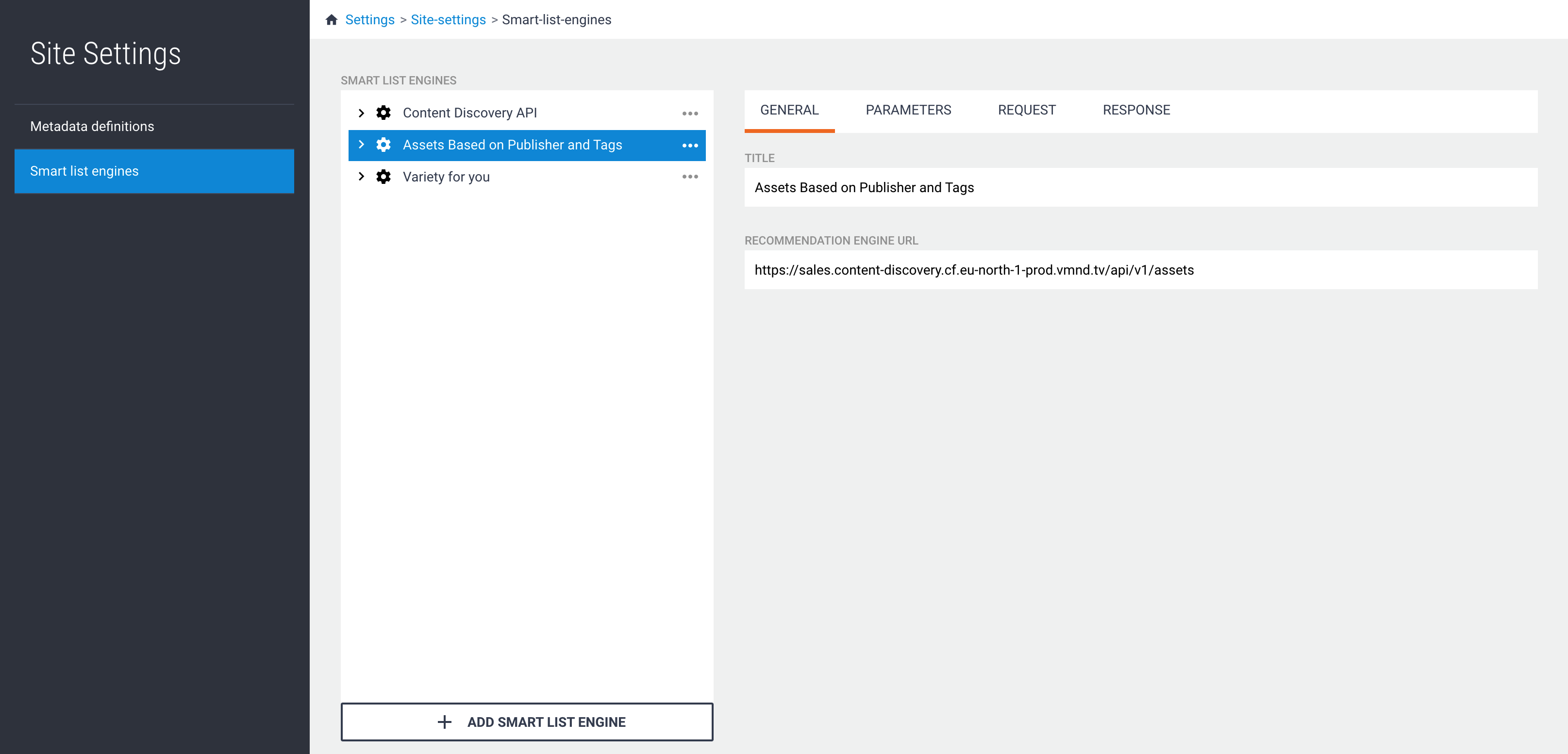
Everything related to recommendation engine integration can be configured from this UI and this is where you define:
the parameters that a recommendation engine accepts
how these parameters should be sent to the recommendation engine
how the response from the recommendation engine should be mapped to a response that can be understood by Curator
In addition you can create smart list templates in this UI. A smart list template is a collection of recommendation engine parameters that can be combined to create a meaningful set of recommendations. It also provides an abstraction level so that the content curators do not have to know which parameters make sense to combine.
Content curators can then create smart lists in Curator based on these templates.
Add recommendation engine
Section titled “Add recommendation engine”Click on the “+ Add smart list engine” to add a new recommendation engine. You may add as many recommendation engines as you like.
A new untitled item will be added to the list and its details are shown to the right of the list. You may give it any name you like by changing the “Title” field to the right.
Everything is automatically saved.
Changing the preview URL
Section titled “Changing the preview URL”This is the URL of the recommendation engine and where the recommendations are fetched from. How the requests and the responses are handled is covered in the Adapter configuration section.
For our example we are using VIA’s Content Discovery APIs
Remove recommendation engine
Section titled “Remove recommendation engine”To remove a recommendation engine click on the item’s action menu and select the “Remove” menu item. The action must be confirmed.
Deleting a recommendation engine will also delete its templates.
👍 Using content discovery
Configure recommendation engine parameters
Section titled “Configure recommendation engine parameters”In this section you will learn how to configure the parameters of a recommendation engine so that they can be shown in the Curator UI and be used by the content curators.
📘 Complete list of parameters
Provided that you are already in the smart list engine and have selected a recommendation engine, click on the “Parameters” tab to navigate to get to the parameter configuration UI.
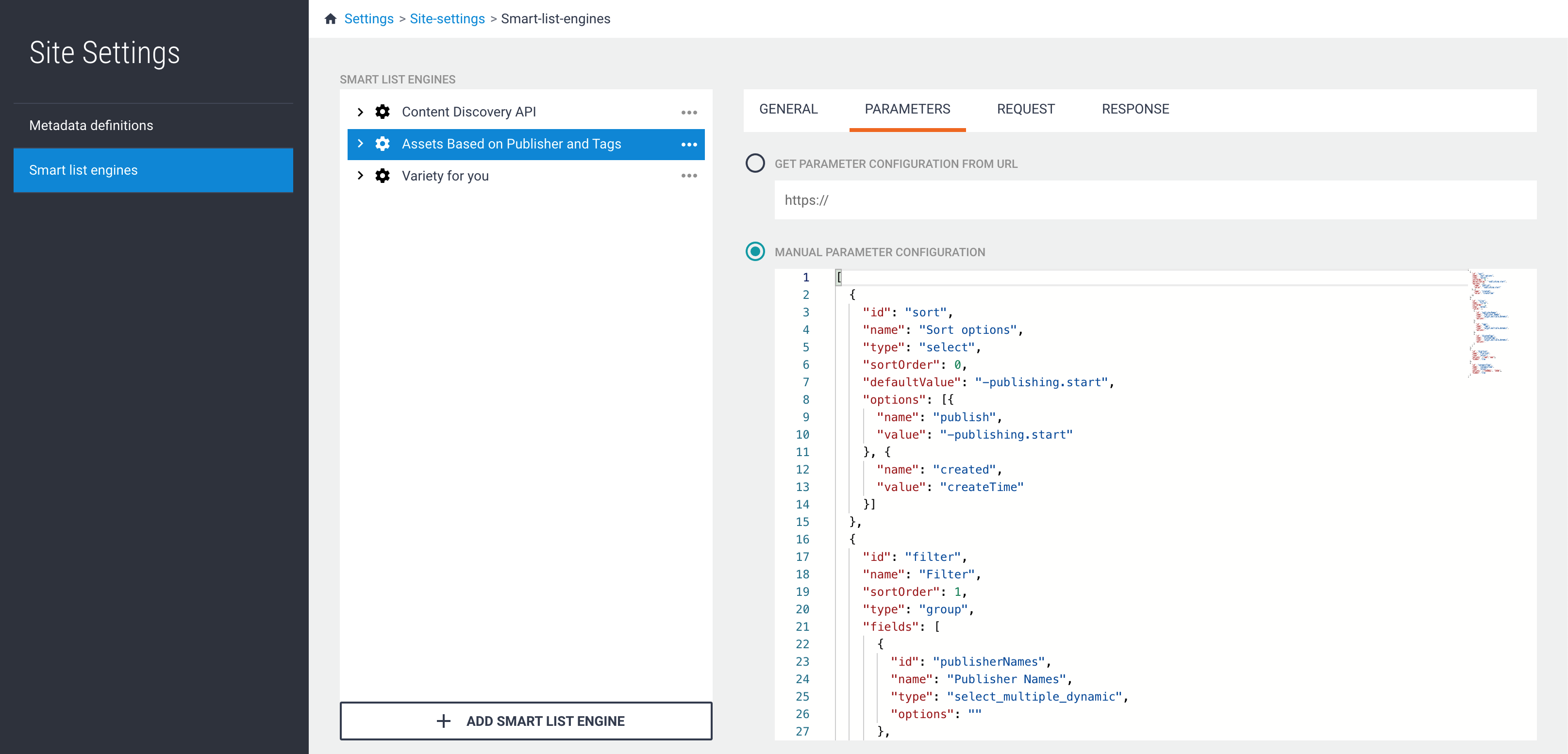
Get parameter configuration from URL
Section titled “Get parameter configuration from URL”Selecting this radio button will allow you to set up an external service from which the field configuration can be fetched. This is useful when you need dynamic field values, for instance allow user segments from an external system to be used as parameters in a smart list.
Type in the URL to your service. The endpoint must return a JSON array of field definitions. The supported field types are listed in the next section.
Manual parameter configuration
Section titled “Manual parameter configuration”Recommendation engine parameters may also be defined directly in the UI. Select the “Manual parameter configuration” radio button and type in the field configuration. The configuration must be entered in JSON format and be an array of field definitions.
Note that you are allowed to define multiple fields with the same ID, but once a field is added to a template you cannot add another field with the same ID to that template - the other fields are filtered out of the “+ Add Field” dropdown.
The following sections list the supported field types.
Accordion
Section titled “Accordion”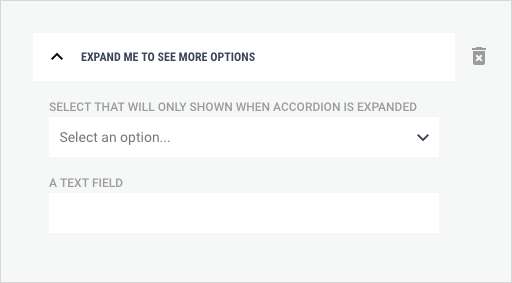
| Parameters | Type | Description | Required |
|---|---|---|---|
| id | string | The parameter name of this field. | Yes |
| disabled | boolean | If set to true, all children defined in “fields” will be disabled. | |
| fields | array | Array of field definitions. These fields will be visible when the accordion is expanded. You may put containers like other accordions, groups and preselects in this array to build more complex UIs. | |
| expanded | boolean | If set to true, this accordion will be expanded and show its children. Defaults to false (collapsed). | |
| hidden | boolean | If set to true, the field will be visible in the template builder, but not in the Curator lightbox. The parameter value will be sent to the recommendation engine. | |
| name | string | The title of the accordion. | Yes |
| spacing | string | Set to “none” to remove spacing between child fields. Defaults to standard group spacing. Useful when e.g. grouping checkboxes closer together. | |
| sortOrder | number | The sort order of this item. Adding a new field to a template will insert it into existing fields based on the sort order. Fields with no sort order will appear at the bottom. | |
| type | string | Must be set to “accordion”. | Yes |
Example
Section titled “Example”{ "id": "accordion", "name": "Expand me to see more options", "type": "accordion", "fields": [{ "id": "select", "type": "select", "name": "Select that will only shown when accordion is expanded", "options": "A,B,C,D,E,F" }, { "id": "text", "type": "text", "name": "A text field" }]}Checkbox
Section titled “Checkbox”
| Parameters | Type | Description | Required |
|---|---|---|---|
| id | string | The parameter name of this field. | Yes |
| defaultValue | boolean | The default value of this field. Defaults to undefined (true/false will not be set until the user has clicked on the checkbox). | |
| disabled | boolean | If set to true, this field will be read only and not editable. | |
| hidden | boolean | If set to true, the field will be visible in the template builder, but not in the Curator lightbox. The parameter value will be sent to the recommendation engine. | |
| name | string | The label of this field. Defaults to no label. | Yes |
| sortOrder | number | The sort order of this item. Adding a new field to a template will insert it into existing fields based on the sort order. Fields with no sort order will appear at the bottom. | |
| type | string | Must be set to “checkbox”. | Yes |
Example:
Section titled “Example:”{ "id": "checkbox", "name": "Checkbox label", "type": "checkbox", "defaultValue": true,}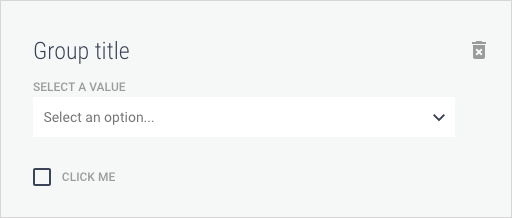
| Parameters | Type | Description | Required |
|---|---|---|---|
| id | string | The parameter name of this field. | Yes |
| disabled | boolean | If set to true, all children defined in “fields” will be disabled. | |
| fields | array | Array of field definitions. These fields will be rendered as children of the group. You may put containers like accordions, groups and preselects in this array to build more complex UIs. | |
| hidden | boolean | If set to true, the field will be visible in the template builder, but not in the Curator lightbox. The parameter value will be sent to the recommendation engine. | |
| name | string | The title of the group. | Yes |
| sortOrder | number | The sort order of this item. Adding a new field to a template will insert it into existing fields based on the sort order. Fields with no sort order will appear at the bottom. | |
| spacing | string | Set to “none” to remove spacing between child fields. Defaults to standard group spacing. Useful when e.g. grouping checkboxes closer together. | |
| type | string | Must be set to “group”. | Yes |
Example:
Section titled “Example:”{ "id": "group", "name": "Group title", "type": "group", "fields": [{ "id": "select", "type": "select", "name": "Select a value", "options": "A,B,C,D,E,F" }, { "id": "checkbox", "type": "checkbox", "name": "Click me" }]}Help text
Section titled “Help text”
An input field for help texts that will be shown in the Curator lightbox. This field can be used to explain parameter fields to the content curators.
Help texts will currently be sent to the recommendation engine along with the other parameters.
This type is built in and does not need to be configured. There can be multiple instances of this field in a template.
Number
Section titled “Number”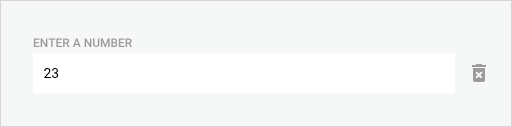
| Parameters | Type | Description | Required |
|---|---|---|---|
| id | string | The parameter name of this field. | Yes |
| defaultValue | number | The default value of this field. Defaults to undefined. | |
| disabled | boolean | If set to true, this field will be read only and not editable. | |
| hidden | boolean | If set to true, the field will be visible in the template builder, but not in the Curator lightbox. The parameter value will be sent to the recommendation engine. | |
| name | string | The label of this field. | Yes |
| placeholder | string | The placeholder text. Defaults to no placeholder text. | |
| required | boolean | If set to true, this field is marked as mandatory. | |
| sortOrder | number | The sort order of this item. Adding a new field to a template will insert it into existing fields based on the sort order. Fields with no sort order will appear at the bottom. | |
| type | string | Must be set to “number”. | Yes |
Example:
Section titled “Example:”{ "id": "number", "name": "Enter a number", "type": "number", "placeholder": "This text will be shown when the field is empty", "defaultValue": 23}Preselect
Section titled “Preselect”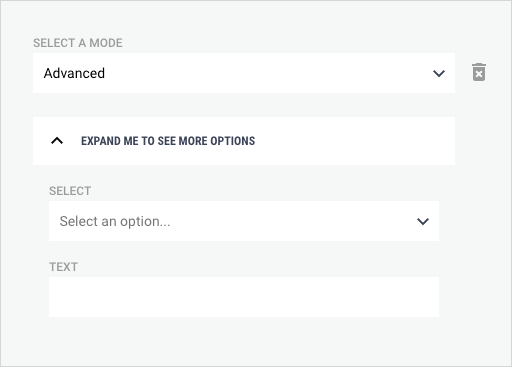
A group container that can show different set of children based on which item is selected from a select dropdown. It can be used for mutually exclusive modes in templates to allow different sets of parameters to be sent depending on the selected mode.
The preselect selection will be sent to the recommendation engine along with the values of children parameters.
| Parameters | Type | Description | Required |
|---|---|---|---|
| id | string | The parameter name of this field. | Yes |
| defaultValue | string | The default selected value of the select. Defaults to undefined (that is, no item is selected and no children will be shown).Preselects should have a default value set and this will include the default values of the children fields. | Yes |
| disabled | boolean | If set to true, this field will be read only and not editable. | |
| fields | array | An array of field definitions. The IDs on the first level must match the IDs defined in “options”.When the user selects an item from the dropdown it will show the parameters corresponding with that ID. | |
| hidden | boolean | If set to true, the field will be visible in the template builder, but not in the Curator lightbox. The parameter value will be sent to the recommendation engine. | |
| name | string | The label of this field. Defaults to no label. | Yes |
| options | string | The options available to select from in the form of a comma separated string. The options must match the ID of one of the children in “fields”. | |
| placeholder | string | The placeholder text. Defaults to “Select an option…”. | |
| required | boolean | If set to true, this field is marked as mandatory. | |
| sortOptions | boolean | Options are sorted alphabetically by default. Set this property to false to prevent that. | |
| sortOrder | number | The sort order of this item. Adding a new field to a template will insert it into existing fields based on the sort order. Fields with no sort order will appear at the bottom. | |
| type | string | Must be set to “preselect”. | Yes |
Example:
Section titled “Example:”{ "id": "preselect", "name": "Select a mode", "type": "preselect", "options": "Simple,Advanced", "fields": [{ "id": "Simple", "type": "select", "name": "Select", "options": "A,B,C,D,E,F" }, { "id": "Advanced", "name": "Expand me to see more options", "type": "accordion", "fields": [{ "id": "select", "type": "select", "name": "Select", "options": "A,B,C,D,E,F" }, { "id": "text", "type": "text", "name": "Text" }] }]}Select
Section titled “Select”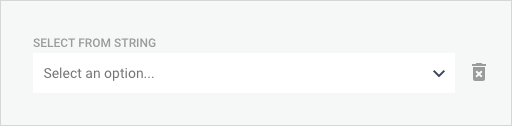
| Parameters | Type | Description | Required |
|---|---|---|---|
| id | string | The parameter name of this field. | Yes |
| defaultValue | string | The default value of this field. Defaults to undefined (no item selected). | |
| disabled | boolean | If set to true, this field will be read only and not editable. | |
| hidden | boolean | If set to true, the field will be visible in the template builder, but not in the Curator lightbox. The parameter value will be sent to the recommendation engine. | |
| name | string | The label of this field. | Yes |
| options | string or array | The options available to select from in the form of a comma separated string or an array of objects with “name” and “value” properties. The UI will only show the name property and the recommendation engine will only be passed the value properties.Values cannot contain commas as this character is used as a separator. | |
| placeholder | string | The placeholder text. Defaults to “Select an option…”. | |
| required | boolean | If set to true, this field is marked as mandatory. | |
| sortOptions | boolean | Options are sorted alphabetically by default. Set this property to false to prevent that. | |
| sortOrder | number | The sort order of this item. Adding a new field to a template will insert it into existing fields based on the sort order. Fields with no sort order will appear at the bottom. | |
| type | string | Must be set to “select”. | Yes |
Example:
Section titled “Example:”{ "id": "select", "name": "Select from string", "type": "select", "options": "Option 1,Option 2,Option 3"}
{ "id": "select", "type": "select", "name": "Select from array of objects", "sortOptions": false, "options": [{ "name": "Option 3", "value": 3 }, { "name": "Option 2", "value": 2 }, { "name": "Option 1", "value": 1 }]}Slider
Section titled “Slider”
| Parameters | Type | Description | Required |
|---|---|---|---|
| id | string | The parameter name of this field. | Yes |
| defaultValue | number | The default value of this field. Defaults to the minimum value of the range. | |
| disabled | boolean | If set to true, this field will be read only and not editable. | |
| hidden | boolean | If set to true, the field will be visible in the template builder, but not in the Curator lightbox. The parameter value will be sent to the recommendation engine. | |
| max | number | The maximum value of the range. Defaults to 100. | |
| min | number | The minimum value of the range. Defaults to 0. | |
| name | string | The label of this field. | Yes |
| sortOrder | number | The sort order of this item. Adding a new field to a template will insert it into existing fields based on the sort order. Fields with no sort order will appear at the bottom. | |
| type | string | Must be set to “slider”. | Yes |
| unit | string | A unit text that will be appended to the value, for example “%”. Keep the unit short as the space allocated for the value is currently fixed. |
Example:
Section titled “Example:”{ "id": "slider", "name": "Select a value between 14 and 102", "type": "slider", "min": 14, "max": 102, "defaultValue": 48}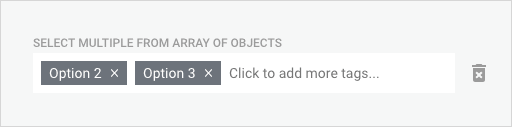
| Parameters | Type | Description | Required |
|---|---|---|---|
| id | string | The parameter name of this field. | Yes |
| defaultValue | string or number | The default value of this field.If you use a comma separated value for options, then this value must include the option names, e.g. “Option 1, Option 2”.If you use an array of name-value objects, then your default value must be set to the option values, e.g. “1,2”.If your option objects have a numerical value you can use number values as default value. | |
| disabled | boolean | If set to true, this field will be read only and not editable. | |
| hidden | boolean | If set to true, the field will be visible in the template builder, but not in the Curator lightbox. The parameter value will be sent to the recommendation engine. | |
| name | string | The label of this field. | Yes |
| options | stringorarray | The options available to select from in the form of a comma separated string or an array of objects with “name” and “value” properties.When using an array of objects the UI will only show the name property and the recommendation engine will only receive the value properties.Values cannot contain commas as this character is used as a separator in the options string. | |
| placeholder | string | The placeholder text. Defaults to “Click to add more tags…”. | |
| required | boolean | If set to true, this field is marked as mandatory. | |
| sortOptions | boolean | Options are sorted alphabetically by default. Set this property to false to prevent that. | |
| sortOrder | number | The sort order of this item. Adding a new field to a template will insert it into existing fields based on the sort order. Fields with no sort order will appear at the bottom. | |
| type | string | Must be set to “select_multiple”. | Yes |
Example:
Section titled “Example:”{ "id": "tags", "name": "Select one or more tags", "type": "select_multiple", "options": "Option 1,Option 2,Option3"}
{ "id": "tags", "type": "select_multiple", "name": "Select multiple from array of objects", "defaultValue": "2,3", "options": [{ "name": "Option 1", "value": 1 }, { "name": "Option 2", "value": 2 }, { "name": "Option 3", "value": 3 }]}Dynamic tags
Section titled “Dynamic tags”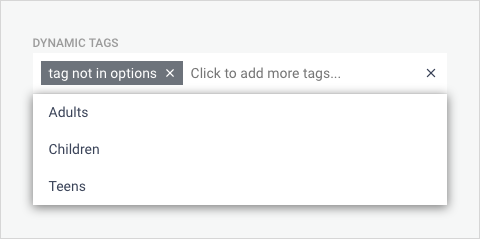
| Parameters | Type | Description | Required |
|---|---|---|---|
| id | string | The parameter name of this field. | Yes |
| defaultValue | string or number | The default value of this field. Must be one of the available options in “options”. | |
| disabled | boolean | If set to true, this field will be read only and not editable. | |
| hidden | boolean | If set to true, the field will be visible in the template builder, but not in the Curator lightbox. The parameter value will be sent to the recommendation engine. | |
| name | string | The label of this field. | Yes |
| options | string or array | The options available to select from in the form of a comma separated string.Values cannot contain commas as this character is used as a separator in the options string. | |
| placeholder | string | The placeholder text. Defaults to “Click to add more tags…”. | |
| required | boolean | If set to true, this field is marked as mandatory. | |
| sortOptions | boolean | Options are sorted alphabetically by default. Set this property to false to prevent that. | |
| sortOrder | number | The sort order of this item. Adding a new field to a template will insert it into existing fields based on the sort order. Fields with no sort order will appear at the bottom. | |
| type | string | Must be set to “select_multiple_dynamic”. | Yes |
Example:
Section titled “Example:”{ "id": "tags", "name": "Dynamic tags", "type": "select_multiple_dynamic", "options": "Adults,Children,Teens"}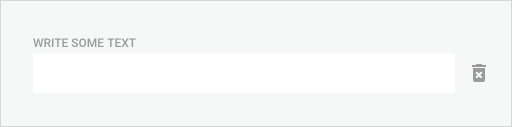
| Parameters | Type | Description | Required |
|---|---|---|---|
| id | string | The parameter name of this field. | Yes |
| defaultValue | string | The default value of this field. | |
| disabled | boolean | If set to true, this field will be read only and not editable. | |
| hidden | boolean | If set to true, the field will be visible in the template builder, but not in the Curator lightbox. The parameter value will be sent to the recommendation engine. | |
| name | string | The label of this field. | Yes |
| placeholder | string | The placeholder text. Defaults to no placeholder text. | |
| required | boolean | If set to true, this field is marked as mandatory. | |
| sortOrder | number | The sort order of this item. Adding a new field to a template will insert it into existing fields based on the sort order. Fields with no sort order will appear at the bottom. | |
| type | string | Must be set to “text”. | Yes |
Example:
Section titled “Example:”{ "id": "text", "name": "Write some text", "type": "text"}Text area
Section titled “Text area”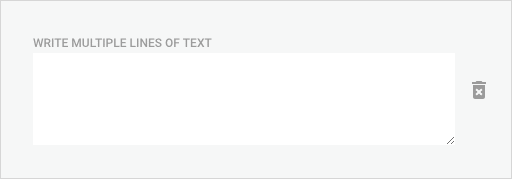
| Parameters | Type | Description | Required |
|---|---|---|---|
| id | string | The parameter name of this field. | Yes |
| defaultValue | string | The default value of this field. | |
| disabled | boolean | If set to true, this field will be read only and not editable. | |
| hidden | boolean | If set to true, the field will be visible in the template builder, but not in the Curator lightbox. The parameter value will be sent to the recommendation engine. | |
| name | string | The label of this field. | Yes |
| placeholder | string | The placeholder text. Defaults to no placeholder text. | |
| required | boolean | If set to true, this field is marked as mandatory. | |
| sortOrder | number | The sort order of this item. Adding a new field to a template will insert it into existing fields based on the sort order. Fields with no sort order will appear at the bottom. | |
| type | string | Must be set to “textarea”. | Yes |
Example:
Section titled “Example:”{ "id": "textarea", "name": "Write multiple lines of text", "type": "textarea"}Weighted group
Section titled “Weighted group”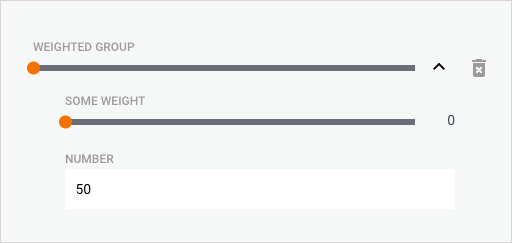
| Parameters | Type | Description | Required |
|---|---|---|---|
| id | string | The parameter name of this field. | Yes |
| disabled | boolean | If set to true, the slider and all children defined in “fields” will be disabled. The accordion’s expand/collapse button will not be affected. | |
| fields | array | Array of field definitions. These fields will be visible when the accordion is expanded. You may put containers like accordions, groups and preselects in this array to build more complex UIs. | |
| expanded | boolean | If set to true, this accordion will be expanded and show its children. Defaults to false (collapsed). | |
| hidden | boolean | If set to true, the field will be visible in the template builder, but not in the Curator lightbox. The parameter value will be sent to the recommendation engine. | |
| name | string | The title of the slider. | Yes |
| sortOrder | number | The sort order of this item. Adding a new field to a template will insert it into existing fields based on the sort order. Fields with no sort order will appear at the bottom. | |
| spacing | string | Set to “none” to remove spacing between child fields. Defaults to standard group spacing. Useful when e.g. grouping checkboxes closer together. | |
| type | string | Must be set to “weighted-group”. | Yes |
Example:
{ "id": "weighted-group", "type": "weighted-group", "name": "Weighted group", "expanded": true, "fields": [{ "id": "slider", "type": "slider", "name": "Some weight" }, { "id": "number", "type": "number", "name": "number", "defaultValue": 50 }]}Vimond Smart Manager specifics
Section titled “Vimond Smart Manager specifics”The Smart Manager is the backend service that persist the recommendation engines (adapters) and templates, configured under the Smart List Templates settings. In addition the service is responsible for building the preview seen in the Vimond Curator Smart List tab when entering a Smart List in edit mode. The same preview function is also used to populate the children of a Smart List when viewing it in list mode. The preview response is dependent on the configuration from the adapter referenced in the Smart List, along with the template generated key/value map stored on the same list and sent as the payload to the preview function.
Adapter configuration
Section titled “Adapter configuration”An adapter configuration (or the adapter payload persisted) has four main parts, the name of the adapter, the input configuration, the request configuration and the response configuration. The input configuration (or parameter configuration) describes which input fields are available for the template builder to use. The request configuration describes how to build a complete request to an external endpoint and the response configuration describes how to parse the response from that endpoint.
Example configuration:
{ "name": "Untitled", "input": { "useExternal": false, "externalUrl": "", "fields": [] }, "request": { "url": "", "method": "GET", "timeout": 0, "accept": "application/json", "contentType": "application/json", "headers": {}, "mapper": {} }, "response": { "status": 200, "mapper": {} }}The example above is the default adapter configuration generated when a new adapter is created from an empty payload. As the input part of the adapter configuration is described in great detail above, the focus in the following text will be the request and response configuration which is the parts necessary for the POST /adapter/:id/preview endpoint to work.
Preview payload
Section titled “Preview payload”To get us started, we need an example payload to send to the preview endpoint. The payload must be a valid json object like the one below.
{ "categoryId": 999, "text": "schindler", "assetType": "movie", "genres": "4,1,11,12", "query": "assetTypeName:<!assetType:*>"}The placeholder introduced
Section titled “The placeholder introduced”Notice the value set for the “query” attribute key in the payload. It contains what is called a placeholder and is identified by these two symbols “<!” at the beginning, and this symbol “>” at the end. The important part is what the symbols encapsulate, to which the format is “<!{key}:{default}:{function(parameters)}>”. What is set in the “key” part must refer to one of the attribute keys in the preview payload, as the Smart Manager will use it to lookup a value from the payload and replace the placeholder with it. In this case, “<!assetType>” is replaced with “movie”. If the attribute key referred to does not exist in the payload (or is not set), the value given in the “default” part of the placeholder is used instead. The last part of the placeholder format, “function(parameters)”, allows for modifications to be made to the looked up value. Available functions and their purpose are explained in more detail here and placeholder examples can be found here.
The request configuration
Section titled “The request configuration”The request configuration is the part of the adapter configuration read by the Smart Manager in order to build the request made to the configured external endpoint. All placeholders used in any of the examples below will refer to the example payload from earlier. Let’s start with the basic parts.
{ "method": "GET", "contentType": "application/json", "accept": "application/json", "timeout": 1000}Valid request methods are “GET” and “POST”. If the “method” is set to “POST”, a payload must be specified in the configuration (described later).
Specify what the format of the payload is in “contentType” and specify the format of the accepted response in the “accept” attribute. Be aware that values set in “contentType” and “accept”, or their default values if not set, will result in the corresponding request headers “Content-Type” and “Accept” to be set to those values. If these headers are configured in the “headers” part of the request configuration (described below), they will always be replaced.
The “timeout” value set is the time in milliseconds to allow for the request to start responding before the request is aborted.
Headers
Section titled “Headers”If any headers need to be sent in the request they can be added in the “headers” part.
{ "headers": { "X-Vimond-Tenant": "<!tenant:vimond>" }}In this case, the value of the “X-Vimond-Tenant” will be set to “vimond” as the Smart Manager will fail to find an attribute key called “tenant” in the preview payload. If the default value “vimond” had been omitted from the placeholder, the “X-Vimond-Tenant” header would not be set at all.
The url part is of course the most important and also mandatory part.
{ "url": "https://vimond-rest-api.ha.dev.vops.io/api/<!platform:web>/search/<!categoryId:root>/all"}After the Smart Manager has parsed the “url” value specified above, the resulting url will be https://vimond-rest-api.ha.dev.vops.io/api/web/search/999/all. If the url is deemed invalid or if any of the placeholders can not be turned into a value, the preview request will return with an error. For instance if the placeholder “<!platform:web>” is changed to just “<!platform>”, an error would be the result, as the payload does not contain an attribute called “platform” and no default value is specified.
The “mapper” parts
Section titled “The “mapper” parts”Let’s move on to the “mapper” part of the request configuration. The “mapper” needs to be a valid json object and may contain three parts. The different parts are “queryParams” / “queryParamsFromValues”, “payload” (mandatory if the method is “POST”) and “pagination”.
{ "mapper": { "queryParamsFromValues": false, "queryParams": { "query": "<!query:*>", "sort": "<!<!sorting>:<!sort:relevancy>>", "text": "<!text>", "someKey": "<!someKey>" }, "pagination": { "start": "start", "size": "size", "startIsOneBased": false, "startIsPage": true } }}Query parameters
Section titled “Query parameters”The “queryParamsFromValues” attribute can be set to true if there are cases where you want all the key/values from the preview payload to be mapped directly into the “queryParams” part. Be aware that if keys used in the “queryParams” part match those mapped directly, they will be overwritten with values from the “queryParams” part.
Notice the nested placeholders used in the “mapper.queryParams.sort” attribute value. The inner placeholders will be parsed before the outer placeholders, so in this case “<!sorting>:<!sort:relevancy>” is parsed first, resulting in this value “smart_undefined:relevancy”. The first placeholder “<!sorting> is replaced with “smart_undefined” indicating no attribute key called “sorting” was found in the payload and no default value was specified in the placeholder. The second placeholder “<!sort:relevancy> is replaced with “relevancy” which is the default value specified as no attribute key called “sort” is found in the payload . We now end up with the outer placeholder looking like this “<!smart_undefined:relevancy>”. That placeholder will be replaced with “relevancy” which is the default value specified, as no attribute key called “smart_undefined” is found in the payload. Consider the “smart_undefined” value mentioned above, a reserved value. It is used internally by the parser to avoid conflicting with “undefined”, which might be a valid value in some scenarios.
After all the placeholders have been parsed and replaced, the query parameters sent in the external request will look as shown below.
{ "query": "assetTypeName:movie", "sort": "relevancy", "text": "schindler"}Notice there is no attribute key called “someKey”, as it’s placeholder “<!someKey>” can not be resolved into any value. If the parser is unable to do that, the attribute key is left out completely as in this case.
Pagination
Section titled “Pagination”Let’s move on to the “pagination” part of the “mapper” configuration. If the external endpoint supports pagination through query parameters, we can configure how to relay the preview endpoint’s internal pagination parameters start and size to the external endpoint. In the “pagination” configuration above, we have configured that the equivalent to our internal start parameter in the external endpoint is called “start” and the equivalent to our internal size parameter in the external endpoint is called “size”. However, the external endpoint’s start parameter, in this case, is page-based while the internal start parameter is offset-based. In order for the preview endpoint to take that into consideration, the “pagination.startIsPage” attribute is set to true. The last attribute, “pagination.startIsOneBased”, is set to false, which means that the first value of the external endpoint’s start parameter is 0 (zero).
Be aware that when the external endpoint’s pagination is page-based, as it is here, the internal pagination start parameter should always be set to a value that is a modulus of the size parameter, or the external response will be out of alignment with the internal expectation.
Ex. (the number ranges inside the parentheses show the expected record numbers to be returned vs. the actual record numbers returned)
/preview?start=0&size=25 ( 0-24) => /ext?start=0&size=25 ( 0-24)
/preview?start=25&size=25 (25-49) => /ext?start=1&size=25 (25-49)
/preview?start=40&size=25 (40-64) => /ext?start=1&size=25 (25-49)
On the third line above, the internal start is set to 40. The parser does an integer division where 40 is divided by 25, resulting in 1. That means the first record returned from the external endpoint is record number 25, while the internal expectation is record number 40. To keep aligned in this case, set the internal start value to 0, 25, 50, 75, and so on.
Payload
Section titled “Payload”When the external endpoint’s request method is set to “POST”, a “payload” part must be added to the “mapper” configuration like in the example below.
{ "mapper": { "payload": { "configObject": { "innerObject": { "text": "<!text>" }, "sort": "<!<!sorting>:<!sort:relevancy>>" }, "anotherObject": { "query": "<!query:*>" }, "someKey": "<!someKey>" } }}In this case, the payload is a json object, but it can also be a string depending on what content type the external endpoint expects. Either way, the Smart Manager will parse the “payload” part the same way it parses the other “mapper” parts, except if it encounters placeholders that does not resolve into either a valid value from the preview payload, or a default value.
The configuration above would fail as the “someKey” attribute’s placeholder “<!someKey>” is not resolvable and the preview endpoint would respond with an error indicating that.
Placeholder functions
Section titled “Placeholder functions”In some cases the external endpoint may have special demands regarding the format of the information transferred to it through the query parameters, headers or the payload object. So far no placeholder functions have been used in any of the examples. Let’s say our failing “someKey” attribute from the json payload example above was supposed to refer to the “genres” key in the preview payload, like this “someKey”: “<!genres>”. Now the parser would succeed and the “someKey” part of the parsed payload would end up like this “someKey”: “4,1,11,12”. If the external endpoint actually expected the value sent in the “someKey” attribute to be an array of numbers, the request to it would probably respond with an error. Luckily we can use a placeholder function to meet the demand by changing the content in the placeholder to <!genres::toNumberArray(true)>, which will make the end result look like this “someKey”: [4,1,11,12]. Notice that the also the quotes wrapping the placeholder has been replaced. That is done when using functions that converts the current value to types like arrays, numbers and booleans. Make sure there is no whitespace between the quotes and the placeholder. The value sent to the functions is always considered a string. The separator used by the functions converting the value to an array, is always a comma, ie. the value “one,two” is converted to [“one”,”two”].
The following functions are available:
| Function | Parameters | Description |
|---|---|---|
| replace | old, new, empty | Will replace all occurrences of the value specified in “old” with the value specified in “new”. The last parameter, “empty”, is not mandatory, but if specified, its value is used if the replacements leads to an empty result. |
| format | format, keepEmpty | Inserts the value into the given “format” string. The value is inserted wherever the placeholder %s is found. If the format string is “This is my value: %s” and the value is “test”, the end result will be “This is my value: test”. The “keepEmpty” is not mandatory, but defaults to false. If the value in the example above had been blank or undefined, the end result would have been “”. |
| toNumber | toIntOnly | Converts the value to a number. If the parameter “toIntOnly” is set to true, only the integer part is converted. If the value is not a number, it is not converted. |
| toBoolean | Converts the value to true or false. | |
| toArray | jsonStringify | Converts the value to an array of strings. If the parameter “jsonStringify” is set to true, the array is made into a json string representation of it. That way it is inserted the correct way by the parser when parsing json payloads. |
| toNumberArray | jsonStringify | Converts the value to an array of numbers. Only items that are actual numbers are added to the array. The parameter “jsonStringify” is explained under the “toArray” function. |
| toObjectArray | attributeKey, baseObject | Converts the value to an array of objects. The parameter “attributeKey” must point to an attribute within the “baseObject” parameter. The “baseObject” parameter must be a valid json object (notice the use of single quotes), ie. {‘text’:‘hello’,’id’: 0}. In this case, the “attributeKey” must be set to either “text” or “id”. The function will first look at the type of the value set in the attribute pointed to by the “attributeKey” parameter. If it is a number, the value will first be converted to an array of numbers (same rules apply as described under the “toNumberArray” function), if not the value is converted to an array of strings. For each item in that array, an object is added to the resulting array where the value of the attribute pointed to by “attributeKey” is set to the item value. For instance if the value is “1,2”, “attributeKey” is “id” and “baseObject” is {‘text’:‘hello’,’id’: 0}, the resulting array would be [{“text”:”hello”,”id”: 1},{“text”:”hello”,”id”: 2}]. Be aware that this array will always be stringified, as explained under the “toArray” function, since this is a pure json function. |
Placeholder examples
Section titled “Placeholder examples”The table below shows some examples of placeholder functionality. The “Values” column contains the key/value map used in each example. If a key is not set in the column, the default value set in the placeholders will be used. Notice that values inserted into placeholders may also contain placeholders. The last examples show nested placeholders and how the inner placeholders can provide the key and default value used by the outer placeholder.
| Values | Placeholder | Result |
|---|---|---|
| “numbers”: “4,12,NaN” | "" | [{“text”:”something”, “id”: 4},{“text”:”something”, “id”: 12}] |
| “genres”: “Action,Drama” | “Action OR Drama” | |
| “type”: “trailer” | “assetTypeName:” | “assetTypeName:trailer” |
| “assetTypeName:” | “assetTypeName:movie” | |
| “type”: “movie,episode”,“solr”: “” | “assetTypeName:()” | “assetTypeName:(movie OR episode)” |
| “default”: “*”,“key”: “value” | “:>” | “*” |
| “value”: “”,“default”: “*”,“key”: “value” | “:>” | “action” |
| “genre”: “drama”,“value”: “”,“default”: “*”,“key”: “value” | “:>” | “drama” |
Debug options
Section titled “Debug options”One final object, not mentioned earlier, can be added to the request configuration. The example below contains all available options.
{ "debugOptions": { "blockRequest": false, "blockResponse”: false }}If added, even as an empty object, it will cause an object called “trace” to be added to the preview response containing the adapter configuration, the request map generated based on it, the external request and the complete external response. If the option “blockRequest” is set to true, the external request is not executed. If the option “blockResponse” is set to true (has no meaning if the “blockRequest” is set to true), the parser will not attempt to parse the external response. That can be useful if the external endpoint responds with an unexpected status code and a review of the configuration used and the actual request done is needed to help track down the failure reason. Both of these options can be sent as query parameters and will then override the options set in the “debugOptions” object if any.
Reserved placeholder attribute keys
Section titled “Reserved placeholder attribute keys”The Smart Manager holds certain keys that can be referred to in request placeholders. If any of these are used as attribute keys in the preview payload, the preview request will return an error indicating that using a reserved attribute key is not allowed.
| Reserved keys | Description |
|---|---|
| smart_undefined | Used By the Smart Manager to indicate inability to find a valid value when parsing a placeholder (not to be referred to in placeholders). Described in detail here. |
| smart_authorization | Contains the value of the authorization header used when requesting the Smart Manager. |
| smart_apiUrl | Contains the Vimond REST API url configured in the Smart Manager.Complete format of the url configured is http://{host}/api/ |
An example of use could be in the request configuration from earlier where the request url was set to the following:
{ "url": "https://vimond-rest-api.ha.dev.vops.io/api/<!platform:web>/search/<!categoryId:root>/all"}In this case, we could use the reserved key “smart_apiUrl” as part of the url configuration if we wanted to point toward the same API endpoint as the Smart Manager does by changing the configuration to:
{ "url": "<!smart_apiUrl><!platform:web>/search/<!categoryId:root>/all"}The response configuration
Section titled “The response configuration”The response configuration is the part of the adapter configuration read by the Smart Manager in order to parse the response from the configured external endpoint into a list readable to the VIA Curator. For the external endpoint configured in our request configuration, the response would look similar to the example shown below.
{ "data": [ { "id": "40624", "timestamp": "2022-01-04T12:18:50Z", "createTime": "2019-06-04T19:31:27Z", "images": { "defaultUrl": "https://cstore.image-service.cc-stg.vmnd.tv/api/v2/img/5cf6c6f2e4b0d5bb480f34b2", "version": "original", "templates": { "regions": [], "locations": [ "I_logo", "1to1_FullColor_1", "16to9_Provider_Poster_Art", "X2_Gallery_Image_1", "3to4_logo", "Key_Arta", "2to1_logo", "Key_Art" ], "withRegion": "https://cstore.image-service.cc-stg.vmnd.tv/api/v2/img/5cf6c6f2e4b0d5bb480f34b2?region=${REGION}", "withLocation": "https://cstore.image-service.cc-stg.vmnd.tv/api/v2/img/5cf6c6f2e4b0d5bb480f34b2?location=${LOCATION}", "complete": "https://cstore.image-service.cc-stg.vmnd.tv/api/v2/img/5cf6c6f2e4b0d5bb480f34b2?region=${REGION}&location=${LOCATION}" } }, "category": { "path": "13712 14511 14851", "link": "https://cstore.content-discovery.cf.cc-stg.vmnd.tv/api/v1/categories/14851", "id": "14851" }, "labeledAsFree": false, "drmProtected": false, "duration": 158.0, "assetType": " ", "isLive": false, "isParent": true, "transmissionTime": "2019-06-04T19:31:27Z", "relatedAssets": [], "qualities": [], "version": { "available": [ "main" ], "type": "main" }, "publishing": { "start": "2020-07-28T19:54:28Z", "end": "2022-05-31T23:59:59Z", "platform": "stb" }, "description": "Join Bob and his "Can-Do" crew as they go back on site to show you the exciting real world of big machines!", "CC": "True", "DVS": "False", "parental-guidance": "TV-Y", "SAP": "False", "ratings_v-chip": "TV-G", "media-feed-id": "dd913560-830f-11e9-94dc-27605572f014", "original-air-date": "08/26/2008", "title": "Bob the Builder : Homes and Playgrounds", "production-year": "2008", "tags": "lgbtq+,chicago p.d.,check,hello,testpubtag,fox news sunday,health/infectious_disease/coronavirus,on_air,on_air/fox_news_sunday,personality,personality/chris_wallace,politics,politics/state_local,politics/state_local/governors,primary_politics,settings/advertising/ad_supported", "external-asset-id": "1435_KDR0001932", "publisher-id": 1435.0, "description-short": "Join Bob and his "Can-Do" crew as they go back on site to show you the exciting real world of big machines!", "Format": "HD", "original-language": "en", "image-pack": "5cf6c6f2e4b0d5bb480f34b2", "ratings_agvot": "G", "producer": "Cheddar", "publisher": "PlayKids", "asset-length": 3764.0, "description-long": "Join Bob and his "Can-Do" crew as they go back on site to show you the exciting real world of big machines! From bird's nests to houses, we all need a home and in this brand new adventure Bob explains how they are built.", "import-job-id": "b0a65750-86fd-11e9-9a5d-5db839e1d6d7" } ], "meta": { "numberOfHits": 1, "totalPages": 1, "pageSize": 1 }, "links": { "self": "https://cstore.content-discovery.cf.cc-stg.vmnd.tv/api/v1/assets?platform=stb&sort=-publishing.start&query=category.publisher:(Cheddar) AND tags:(check) AND category.categoryType:(EXTRAS)", "first": "https://cstore.content-discovery.cf.cc-stg.vmnd.tv/api/v1/assets?platform=stb&sort=-publishing.start&query=category.publisher:(Cheddar) AND tags:(check) AND category.categoryType:(EXTRAS)", "last": "https://cstore.content-discovery.cf.cc-stg.vmnd.tv/api/v1/assets?platform=stb&sort=-publishing.start&query=category.publisher:(Cheddar) AND tags:(check) AND category.categoryType:(EXTRAS)" }}From looking at the external response, we choose to create the response configuration shown below.
{ "mapper": { "asset": { "id": "id", "title": "title", "description": "description", "basePath": "data[]", "imageUrl": "images.defaultUrl" }, "pagination": { "hitsPath": "meta.numberOfHits" } }, "status": 200}The configuration has two parts, the “mapper” part and the “status” part. The “status” part specify what response status code to expect for successful responses. If more than one status code signifies a successful response, an array of status codes can be specified. For instance “status”:[200, nnn].
The “asset” and “category” types
Section titled “The “asset” and “category” types”The “types” named “asset” and “category” is considered special “types” by the Smart Manager, and it will attempt to complete the preview response for those types if the attributes “title” and/or “imageUrl” is not configured or does not have a value. It uses the id found for the items in question to look up the assets and/or categories from the Vimond REST API, extract the mentioned field values and complete the items with the information found. In cases where a complete image url is not found in order to complete the “imageUrl” attribute, the Smart Manager will check if an “image-pack” is found. If found, the “imageUrl” is built by concatenating it with the IMAGESERVICE_EXTERNAL_URL environment variable.
Prefix and postfix placeholders
Section titled “Prefix and postfix placeholders”Another feature worth mentioning is the possibility to add a prefix or postfix to any value extracted by the parser. For example if a “type” configured in the “mapper” has an attribute called “imageUrl” and the external endpoint only returns the filename of an image in the corresponding external attribute, a postfix placeholder can be placed in front of the external attribute configuration in order to create a complete image url.
{ "mapper": { "basePath": "search", "item": { "basePath": "item[]", "id": "@id", "title": "title", "imageUrl": "<!https://vimond.com/uploads/clients/> fileName" } }, "status": 200}If the external response contained an item where the value of the “fileName” attribute was “tv2.png”, the value set for the “imageUrl” attribute by the parser would be “https://vimond.com/uploads/clients/tv2.png”. If a postfix is needed, simply put a placeholder containing the postfix wanted (including whitespace if any), after the external attribute key configured.

Other mappings
Section titled “Other mappings”Except for the special attribute keys mentioned, any other attributes added in the “type” configurations will be mapped to the preview response by the parser if a value is found for the corresponding external attribute key configured.
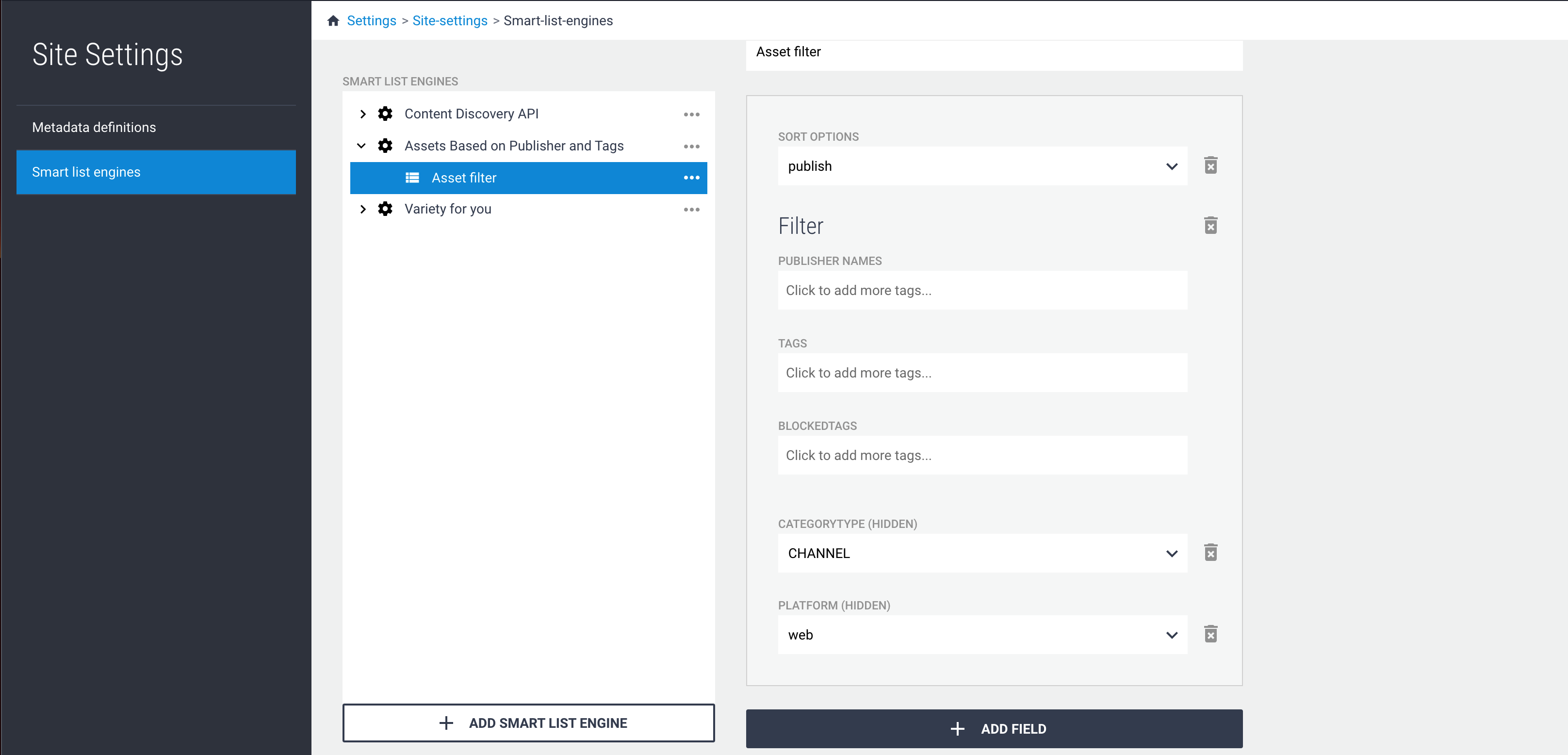
Configure smart list templates
Section titled “Configure smart list templates”In this section you will learn how to configure smart list templates for a recommendation engine.
A smart list template is a collection of recommendation engine parameters that can be combined to create a meaningful set of recommendations. It also provides an abstraction level so that the content curators do not have to know which parameters make sense to combine.
Any number of the configured recommendation engine parameters may be added to a template and you may also adjust the default field values for any of the fields.
Content Curators can then create smart lists in Curators based on these templates. The flow for creating smart lists is described in the user manual.
Permissions
Section titled “Permissions”| Permission | Actions permitted |
|---|---|
| contentpanel:SMARTLIST_TEMPLATES_READ | Navigate to smart list template builder and see the configuration. This permission will also enable a link to the smart list template builder in the Curator lightbox. |
| contentpanel:SMARTLIST_TEMPLATES_CREATE | Create recommendation engines and templates. |
| contentpanel:SMARTLIST_TEMPLATES_UPDATE | Update recommendation engines and templates |
| contentpanel:SMARTLIST_TEMPLATES_DELETE | Delete recommendation engines and templates |
Create template
Section titled “Create template”Click on the recommendation engine’s action menu and select the “Add Template” menu item. A new untitled template is added to the recommendation engine. You may change its name by changing the value in the “Title” field.
The “Add Template” menu item is also available from a template’s action menu.
Remove template
Section titled “Remove template”Click on a template’s action menu and select the “Remove” menu item. The action must be confirmed.
Deleting a template will not affect any existing smart lists based on the template. The smart lists will keep their values until changed. However, the Curator lightbox will report the template as missing when you navigate to the “Smart List” tab.
Add fields
Section titled “Add fields”A recommendation engine parameter can be added to a template by clicking on the “+ Add Field” button and selecting a field.
You can have multiple fields with the same ID in your field definitions, but you will once a field is added to a template you will not be able to add another field with the same ID. They will be filtered out of the “+ Add Field” list.
Remove fields
Section titled “Remove fields”Click on the trashcan icon to the right of a field to remove it from a template. The action must be confirmed.
Deleting a field from a template will not affect any existing smart lists. The smart lists will keep their values until changed. A warning will be shown in the “Smart List” tab in the Curator lightbox stating that the template has changed after the smart list was created and display an action to resolve the changes. Clicking on the link will update the smart list and remove any the values for any deleted fields and add the default values for any added fields.