

Bitmovin Player & Vimond VIA
As the digital media landscape continues to evolve, the importance of delivering high-quality, scalable, and adaptable video content to users is paramount. Two names that often come up in conversations about advanced video streaming are Bitmovin Player and Vimond VIA. While each tool is powerful on its own, combining them can elevate your video delivery and user experience to new heights.
Bitmovin Player, renowned for its adaptive streaming capabilities, ensures that your content reaches audiences in the best quality possible, irrespective of their device or network conditions. On the other hand, Vimond VIA, a leading video content management platform, simplifies the complexities of managing, organizing, and distributing video assets.
This guide aims to bridge the gap between these two formidable technologies. Whether you’re an experienced developer familiar with one tool but new to the other or starting your journey with both, this resource is crafted to provide step-by-step instructions, best practices, and troubleshooting tips to seamlessly integrate Bitmovin Player with Vimond VIA for optimal video playout.
Let’s dive in and explore the synergy between these platforms, ensuring your audience enjoys an unparalleled video streaming experience!
Preface
Section titled “Preface”This guide provides a step-by-step walkthrough to seamlessly integrate Bitmovin Player with Vimond VIA using React and TypeScript. By the end, you’ll have a video player that fetches and displays content with the option of subtitles and timeline markers.
Prerequisites: Familiarity with React, TypeScript, and basic knowledge of video streaming concepts.
Setting up
Section titled “Setting up”To kickstart our integration, let’s set up a new React app with TypeScript support
npx create-react-app vimond-bitmovin-demo --template typescriptcd vimond-bitmovin-demonpm install bitmovin-player bitmovin-player-uinpm startYou should see your demo app running at http://localhost:3000/ by default.
Open the newly created project in your favorite editor and modify App.tsx so we are left with the below.
import React, { useState } from 'react';import './App.css';
function App() {
  return (    <div className="App">      Hello World!    </div>  );}
export default App;
Adding the Vimond VIA API integration for Asset lookups
Section titled “Adding the Vimond VIA API integration for Asset lookups”In order to fetch information about the Asset we are going to use the Content Discovery API.
To make it easier to work with the API responses from VIA we will be creating a few type definition files that we add to a folder src/types.
We start by the type for the Asset lookup found in the API reference: Retrieve an asset by its id
export type AssetType = {    id: string;    timestamp: string;    createTime: string;    images?: ImagesInfo;    category: CategoryInfo;    labeledAsFree: boolean;    drmProtected: boolean;    duration: number;    assetType: string;    isLive: boolean;    isParent: boolean;    transmissionTime: string;    relatedAssets: any[]; // Define the proper type for related assets if needed    qualities: any[]; // Define the proper type for qualities if needed    startTime: number;    endTime: number;    version: VersionInfo;    publishing: PublishingInfo;    products: ProductInfo[];    description: string;    externalAssetId: string;    publisherId: number;    descriptionShort: string;    mimirId: string;    imagePack: string;    mediaFeedId: string;    title: string;    importJobId: string;};
type ImagesTemplates = {    regions: string[];    locations: string[];    withRegion: string;    withLocation: string;    complete: string;};
type ImagesInfo = {    defaultUrl: string;    version: string;    templates: ImagesTemplates;};
type CategoryInfo = {    link: string;    id: string;};
type VersionInfo = {    type: string;    available: string[];};
type PublishingInfo = {    start: string;    platform: string;    geoExpressions: string[];};
type ProductInfo = {    id: string;    name: string;    accessType: string;};
And AssetErrorCode.tsx for handling API error codes found on Error response
export const AssetErrorCode = {
    // Content discovery errors    ASSET_NOT_FOUND: '2000',    CATEGORY_NOT_FOUND: '2001',    CONTENT_PANEL_NOT_FOUND: '2002',    SHOW_NOT_FOUND: '2003',    INVALID_SORT_PARAM: '2004',
} as const;
type ErrorInfo = {    title: string;    detail: string;    code: string;};
export type AssetErrorType = {    errors?: readonly ErrorInfo[];};
Back in our App.tsx we can now add the placeholders for our new asset state that we will fetch from the Vimond API.
import React, { useState } from 'react';import './App.css';import { AssetType } from './types/AssetType';import { AssetErrorType } from './types/AssetErrorCode';
function App() {
  const [asset, setAsset] = useState<AssetType | undefined>(undefined);  const [assetError, setAssetError] = useState<AssetErrorType | undefined>(undefined);
  return (    <div className="App">      Hello World!    </div>  );}
export default App;
Next, we use the useEffect method as a natural place to add our actual API call.
For the below example, we use the sales tenant in the eu-north-1-prod environment with example asset 181878
import React, { useEffect, useState } from 'react';import './App.css';import { AssetType } from './types/AssetType';import { AssetErrorType } from './types/AssetErrorCode';
function App() {
  const [asset, setAsset] = useState<AssetType | undefined>(undefined);  const [assetError, setAssetError] = useState<AssetErrorType | undefined>(undefined);
  useEffect(() => {      fetch(`https://sales.content-discovery.cf.eu-north-1-prod.vmnd.tv/api/v1/assets/181878`)          .then(response => response.json())          .then(data => {            if(data.data) {                setAsset({...data.data[0]} as AssetType);            }            if(data.errors) {                setAssetError({ errors: data.errors})            }          })          .catch(error => console.error(error));  },[]);
  return (    <div className="App">      <h1>Asset:</h1>      {JSON.stringify(asset)}    </div>  );}
export default App;
In order to help us see what is going on we simply output the raw JSON object to the screen.
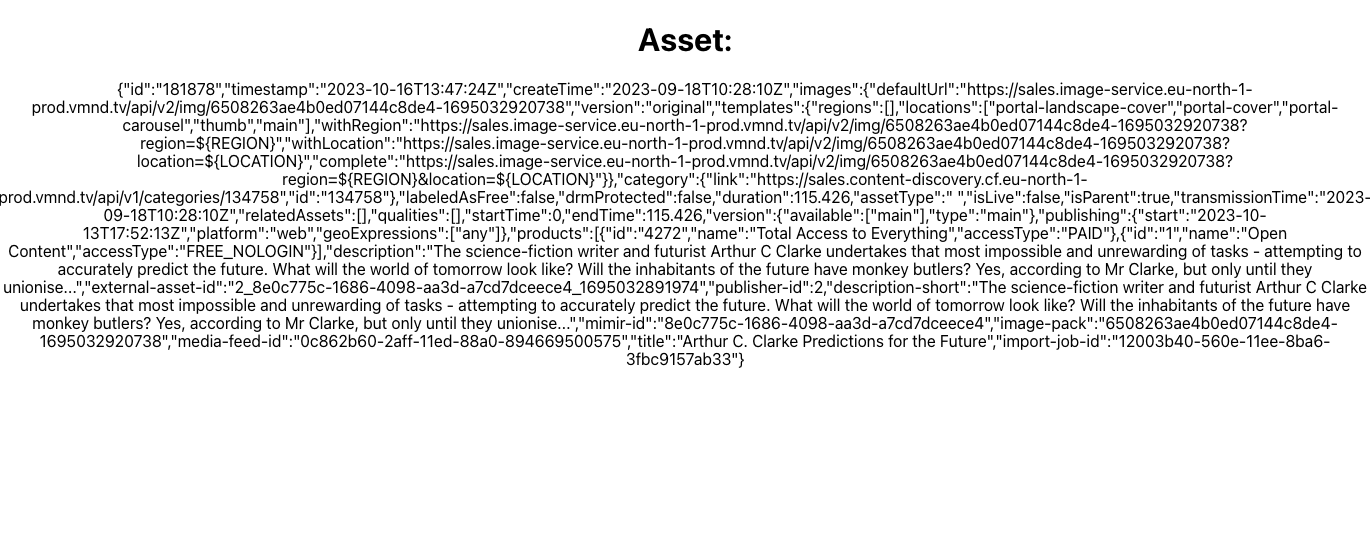
Great! It looks like we now have the basic asset details available. However, in order to play back a video we will also need to use the Video Playback API to fetch valid stream options for our device.
Adding the Vimond VIA API integration for Asset Playback options
Section titled “Adding the Vimond VIA API integration for Asset Playback options”To make it easier to work with the API responses from VIA we will again be creating a few type definition files that we add to a folder src/types.
We start by the type for the Asset Playback found in the API reference: Get play urls for an asset
export type PlaybackType = {    assetId: string;    assetTitle: string;    categoryId: string;    startTime: number;    endTime: number;    duration: number;    transmissionTime: string;    isDrmProtected: boolean;    isLive: boolean;    recommendedStream?: StreamInfo;    streamTemplate?: {        profile: string[];        provider: null[]; // You can define the proper type if needed        mimeType: string[];    };    alternativeStreams?: StreamInfo[];    subtitles?: SubtitleInfo[];    markers?: MarkerInfo[];    version: VersionInfo;};
type StreamManifest = {    headers: any[]; // You can define the proper type for headers if needed    uri: string;};
type StreamInfo = {    id: string;    bitrate: number;    mediaFormat: string;    mimeType: string;    manifest: StreamManifest;};
type SubtitleInfo = {    name: string;    locale: string;    audience: string;    contentType: string;    url: string;    checksum: {        hashAlgorithm: string;    };};
type ImagesTemplates = {    regions: string[];    locations: string[];    withRegion: string;    withLocation: string;    complete: string;};
type ImagesInfo = {    defaultUrl: string;    version: string;    templates: ImagesTemplates;};
type MarkerInfo = {    title: string;    description: string;    type: string;    startTime: number;    endTime: number;    images?: ImagesInfo};
type VersionInfo = {    type: string;    available: string[];};
And PlaybackErrorCode.tsx for handling API error codes found on Error response
export const PlaybackErrorCode = {    // Play service errors    ASSET_NOT_FOUND: '3000',    INVALID_LOCALES: '3001',    MISSING_IP: '3002',    MISSING_CONTENT_PACKAGE: '3003',    MISSING_ENTITLEMENT: '3003',    INVALID_GEO_LOCATION: '3004',    NO_STREAM_AVAILABLE: '3005',    DEVICE_LIMIT_EXCEEDED: '3006',    INVALID_STREAM_PROFILE: '3007',    UNSUFFICIENT_QUALITY_ENTITLEMENT: '3008',    FAILED_TO_FETCH_LOG_DATA_CONFIGURATION: '3009',    FAILED_TO_COMPUTE_LOG_DATA: '3010',    ANONYMOUS_IP_NOT_ALLOWED: '3011',    BAD_STREAM: '3012',    ASSET_NOT_STARTED: '3013',    INVALID_DEVICE_INFORMATION: '3014',    INVALID_UNTIL_ENTITLEMENT_CLAIM: '3015',    MALFORMED_ENTITLEMENTS_CLAIM: '3016',} as const;
type ErrorInfo = {    title: string;    detail: string;    code: string;};
export type PlaybackErrorType = {    errors?: readonly ErrorInfo[];};
Back in our App.tsx we can now add the extra placeholders for our new asset playback state that we will fetch from the Vimond API.
import React, { useEffect, useState } from 'react';import './App.css';import { AssetType } from './types/AssetType';import { AssetErrorType } from './types/AssetErrorCode';import { PlaybackType } from './types/PlaybackType';import { PlaybackErrorType } from './types/PlaybackErrorCode';
function App() {
  const [asset, setAsset] = useState<AssetType | undefined>(undefined);  const [assetError, setAssetError] = useState<AssetErrorType | undefined>(undefined);  const [playback, setPlayback] = useState<PlaybackType | undefined>(undefined);  const [playbackError, setPlaybackError] = useState<PlaybackErrorType | undefined>(undefined);

  useEffect(() => {      fetch(`https://sales.content-discovery.cf.eu-north-1-prod.vmnd.tv/api/v1/assets/181878`)          .then(response => response.json())          .then(data => {            if(data.data) {                setAsset({...data.data[0]} as AssetType);            }            if(data.errors) {                setAssetError({ errors: data.errors})            }            const requestOptions = {              method: 'POST',              headers: {                  'Content-Type': 'application/json'              },            }            fetch(`https://sales.play.cf.eu-north-1-prod.vmnd.tv/api/v2/asset/181878/play?extraFields=markers,alternativeStreams,streamsTemplate`, requestOptions)                .then(response => response.json())                .then(data => {                    if(data.data) {                        setPlayback({...data.data[0]} as PlaybackType);                    }                    if(data.errors) {                        setPlaybackError({ errors: data.errors} );                    }                })                .catch(error => console.error(error));          })          .catch(error => console.error(error));  },[]);
  return (    <div className="App">      <h1>Asset:</h1>      {JSON.stringify(asset)}      <h1>Playback:</h1>      {JSON.stringify(playback)}    </div>  );}
export default App;
Great! Our little demo app can now fetch both asset and playback data from Vimond VIA.
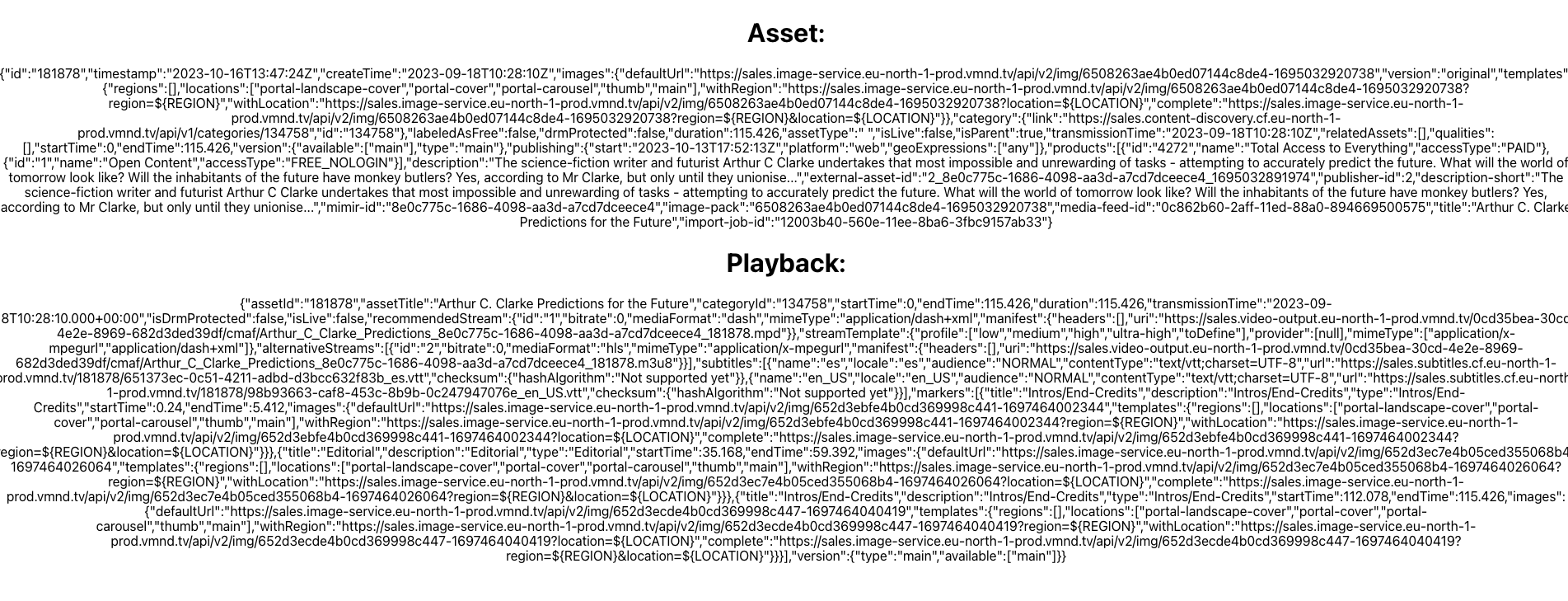
Next we will look at how we can use this with the Bitmovin Player to trigger video playback.
Adding the Bitmovin Player
Section titled “Adding the Bitmovin Player”We start by creating a new react component for the Bitmovin player based on their example provided.
import {useEffect, useRef, useState} from 'react';import {Player, PlayerAPI, PlayerConfig, SourceConfig} from 'bitmovin-player/modules/bitmovinplayer-core';import EngineBitmovinModule from 'bitmovin-player/modules/bitmovinplayer-engine-bitmovin';import EngineNativeModule from 'bitmovin-player/modules/bitmovinplayer-engine-native';import MseRendererModule from 'bitmovin-player/modules/bitmovinplayer-mserenderer';import HlsModule from 'bitmovin-player/modules/bitmovinplayer-hls';import DashModule from 'bitmovin-player/modules/bitmovinplayer-dash';import AbrModule from 'bitmovin-player/modules/bitmovinplayer-abr';import XmlModule from 'bitmovin-player/modules/bitmovinplayer-xml';import ContainerTSModule from 'bitmovin-player/modules/bitmovinplayer-container-ts';import ContainerMp4Module from 'bitmovin-player/modules/bitmovinplayer-container-mp4';import SubtitlesModule from 'bitmovin-player/modules/bitmovinplayer-subtitles';import SubtitlesCEA608Module from 'bitmovin-player/modules/bitmovinplayer-subtitles-cea608';import SubtitlesVTTModule from 'bitmovin-player/modules/bitmovinplayer-subtitles-vtt';import SubtitlesNativeModule from 'bitmovin-player/modules/bitmovinplayer-subtitles-native';import PolyfillModule from 'bitmovin-player/modules/bitmovinplayer-polyfill';import StyleModule from 'bitmovin-player/modules/bitmovinplayer-style';import {UIFactory, UIManager} from 'bitmovin-player-ui';import 'bitmovin-player/bitmovinplayer-ui.css';import {AssetType} from "../types/AssetType";import {PlaybackType} from "../types/PlaybackType";
type BitmovinPlayerProps = {    asset: AssetType,    playback: PlaybackType};const BitmovinPlayer = ({asset, playback}: BitmovinPlayerProps) => {
    const [player, setPlayer] = useState<PlayerAPI | null>(null);    const [uiManager, setUiManager] = useState<UIManager | null>(null)
    const playerConfig:PlayerConfig = {        key: '<INSERT YOUR BITMOVIN KEY>',    };
    const playerDiv = useRef<HTMLDivElement>(null);
    useEffect(() => {        if(!playerDiv.current) return;
        const recommendedStream = playback.recommendedStream;        const alternativeStreams = playback.alternativeStreams;
        const dash = recommendedStream?.mediaFormat === 'dash' ? recommendedStream : alternativeStreams?.find(s => s.mediaFormat === 'dash');        const hls = recommendedStream?.mediaFormat === 'hls' ? recommendedStream : alternativeStreams?.find(s => s.mediaFormat === 'hls');
        // select portal landscape cover if available        const imageLocation = asset.images?.templates.locations.find( l => l === 'portal-landscape-cover') || 'main';        const poster = asset.images?.defaultUrl + `?location=${imageLocation}&height=${document.body.clientHeight}&width=${document.body.clientWidth}`;
        const playerSource:SourceConfig = {            dash : dash?.manifest.uri,            hls: hls?.manifest.uri,            poster,        };
        Player.addModule(EngineBitmovinModule);        Player.addModule(EngineNativeModule);        Player.addModule(MseRendererModule);        Player.addModule(HlsModule);        Player.addModule(XmlModule);        Player.addModule(DashModule);        Player.addModule(AbrModule);        Player.addModule(ContainerTSModule);        Player.addModule(ContainerMp4Module);        Player.addModule(SubtitlesModule);        Player.addModule(SubtitlesCEA608Module);        Player.addModule(SubtitlesVTTModule);        Player.addModule(SubtitlesNativeModule);        Player.addModule(PolyfillModule);        Player.addModule(StyleModule);
        const playerInstance = new Player(playerDiv.current, playerConfig);        setPlayer(playerInstance)        setUiManager(UIFactory.buildDefaultUI(playerInstance));
        playerInstance.load(playerSource).then(() => {            console.log('Successfully loaded source');        }, () => {            console.log('Error while loading source');        });
        return () => {            if (player != null) {                player.destroy();                setPlayer(null);            }            if(uiManager !== null) {                uiManager.release();            }        }    }, [])
    return <div id='player' ref={playerDiv}/>;}
export default BitmovinPlayer;
Before you proceed, ensure you replace
Back in our App.tsx we can now use the new Bitmovin Player component that takes the asset and playback state as props.
import React, { useEffect, useState } from 'react';import './App.css';import { AssetType } from './types/AssetType';import { AssetErrorType } from './types/AssetErrorCode';import { PlaybackType } from './types/PlaybackType';import { PlaybackErrorType } from './types/PlaybackErrorCode';import BitmovinPlayer from './components/BitmovinPlayer';
function App() {
  const [asset, setAsset] = useState<AssetType | undefined>(undefined);  const [assetError, setAssetError] = useState<AssetErrorType | undefined>(undefined);  const [playback, setPlayback] = useState<PlaybackType | undefined>(undefined);  const [playbackError, setPlaybackError] = useState<PlaybackErrorType | undefined>(undefined);

  useEffect(() => {      fetch(`https://sales.content-discovery.cf.eu-north-1-prod.vmnd.tv/api/v1/assets/181878`)          .then(response => response.json())          .then(data => {            if(data.data) {                setAsset({...data.data[0]} as AssetType);            }            if(data.errors) {                setAssetError({ errors: data.errors})            }            const requestOptions = {              method: 'POST',              headers: {                  'Content-Type': 'application/json'              },            }            fetch(`https://sales.play.cf.eu-north-1-prod.vmnd.tv/api/v2/asset/181878/play?extraFields=markers,alternativeStreams,streamsTemplate`, requestOptions)                .then(response => response.json())                .then(data => {                    if(data.data) {                        setPlayback({...data.data[0]} as PlaybackType);                    }                    if(data.errors) {                        setPlaybackError({ errors: data.errors} );                    }                })                .catch(error => console.error(error));          })          .catch(error => console.error(error));  },[]);
  return (    <div className="App">      {asset && playback ? <BitmovinPlayer asset={asset} playback={playback} /> : <></>}    </div>  );}
export default App;
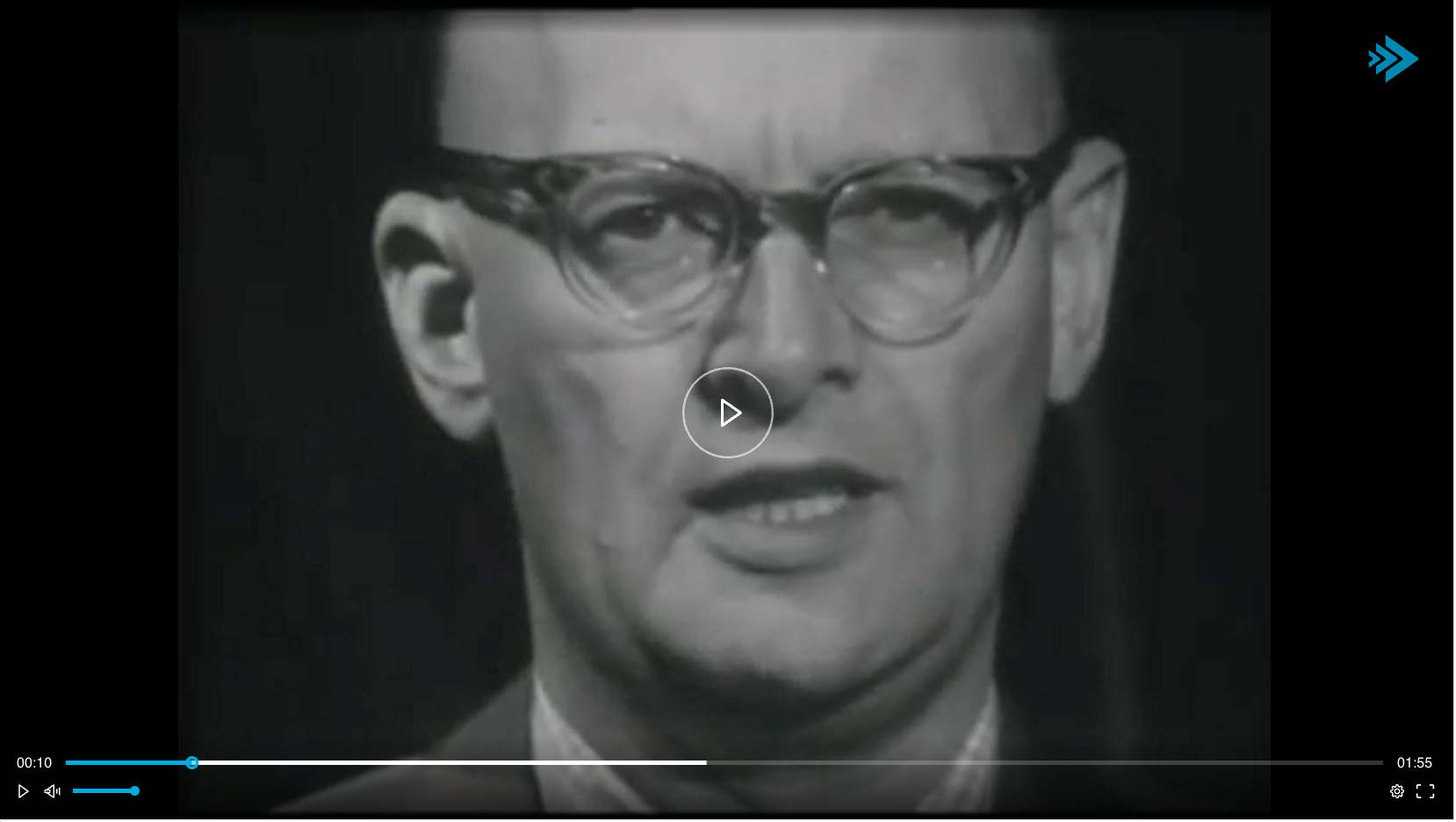
Great! We now have a video playing!
Adding subtitles
Section titled “Adding subtitles”Adding the subtitles now becomes a trivial task of updating the BitmovinPlayer.tsx to add the subtitles after loading the source video
...        playerInstance.load(playerSource).then(() => {
            // subtitles            // https://developer.bitmovin.com/playback/docs/how-to-add-external-subtitles-to-the-bitmovin-player            playback.subtitles?.forEach(s => {                playerInstance.subtitles.add({                    id: s.name,                    lang: s.locale,                    label: s.name,                    kind: s.audience === 'NORMAL' ? 'subtitle' : 'caption',                    url: s.url                });            });
            console.log('Successfully loaded source');        }, () => {            console.log('Error while loading source');        });...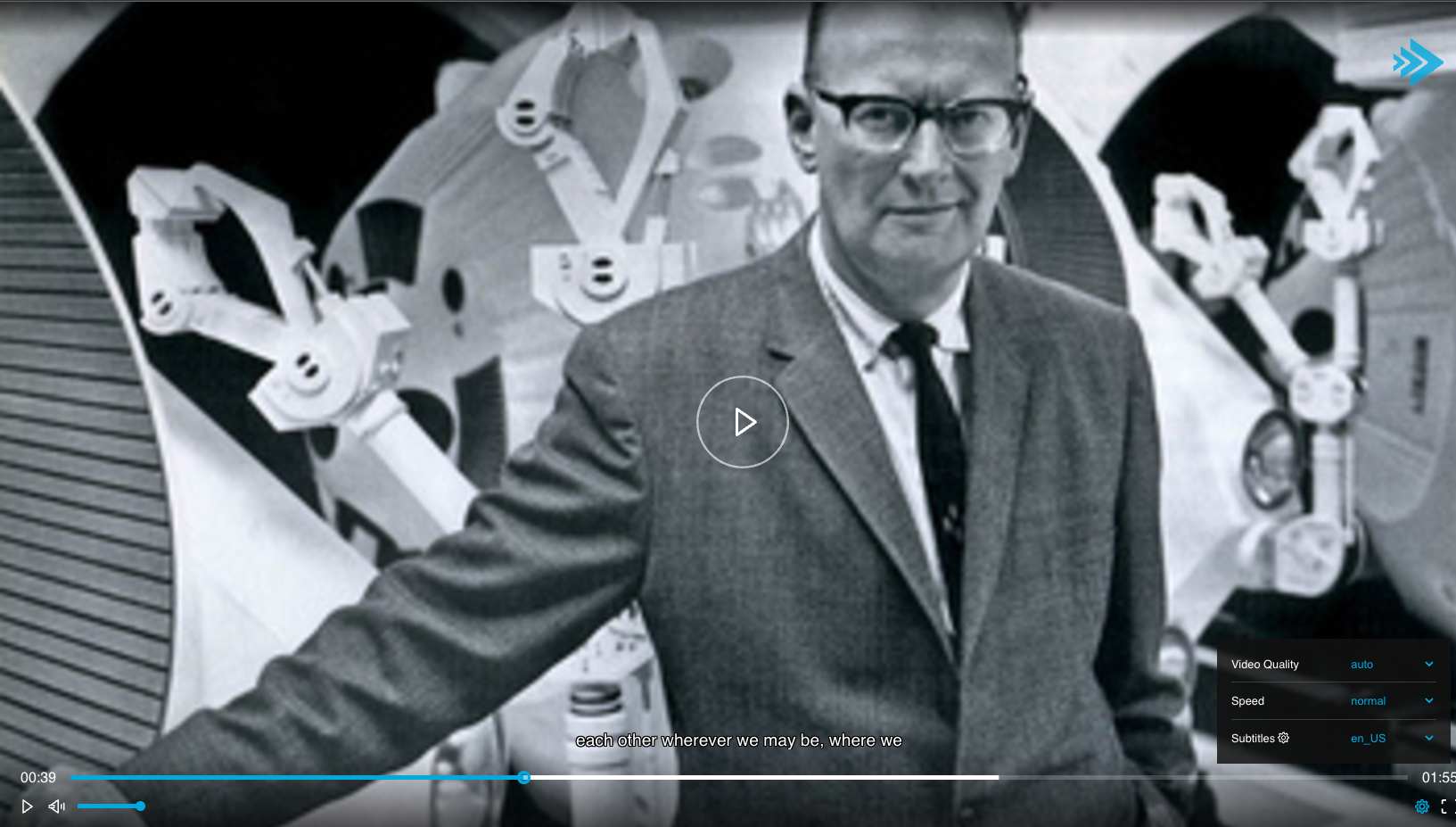
Adding Timeline markers
Section titled “Adding Timeline markers”We can also add the available timeline markers by adding them to the playerSource
...      const playerSource:SourceConfig = {            dash : dash?.manifest.uri,            hls: hls?.manifest.uri,            poster,
            // https://github.com/bitmovin/bitmovin-player-web-samples/blob/main/playerUi/timelineMarkers.html            // @ts-ignore            markers: playback.markers?.map(m => ({                time: m.startTime,                title: m.title,                duration: Math.floor(m.endTime - m.startTime),                imageUrl: m.images?.defaultUrl            }))        };...
We now also have the chapter markers added that the user can use for navigating the video.
The final resulting code
import {useEffect, useRef, useState} from 'react';import {Player, PlayerAPI, PlayerConfig, SourceConfig} from 'bitmovin-player/modules/bitmovinplayer-core';import EngineBitmovinModule from 'bitmovin-player/modules/bitmovinplayer-engine-bitmovin';import EngineNativeModule from 'bitmovin-player/modules/bitmovinplayer-engine-native';import MseRendererModule from 'bitmovin-player/modules/bitmovinplayer-mserenderer';import HlsModule from 'bitmovin-player/modules/bitmovinplayer-hls';import DashModule from 'bitmovin-player/modules/bitmovinplayer-dash';import AbrModule from 'bitmovin-player/modules/bitmovinplayer-abr';import XmlModule from 'bitmovin-player/modules/bitmovinplayer-xml';import ContainerTSModule from 'bitmovin-player/modules/bitmovinplayer-container-ts';import ContainerMp4Module from 'bitmovin-player/modules/bitmovinplayer-container-mp4';import SubtitlesModule from 'bitmovin-player/modules/bitmovinplayer-subtitles';import SubtitlesCEA608Module from 'bitmovin-player/modules/bitmovinplayer-subtitles-cea608';import SubtitlesVTTModule from 'bitmovin-player/modules/bitmovinplayer-subtitles-vtt';import SubtitlesNativeModule from 'bitmovin-player/modules/bitmovinplayer-subtitles-native';import PolyfillModule from 'bitmovin-player/modules/bitmovinplayer-polyfill';import StyleModule from 'bitmovin-player/modules/bitmovinplayer-style';import {UIFactory, UIManager} from 'bitmovin-player-ui';import 'bitmovin-player/bitmovinplayer-ui.css';import {AssetType} from "../types/AssetType";import {PlaybackType} from "../types/PlaybackType";
type BitmovinPlayerProps = {    asset: AssetType,    playback: PlaybackType};const BitmovinPlayer = ({asset, playback}: BitmovinPlayerProps) => {
    const [player, setPlayer] = useState<PlayerAPI | null>(null);    const [uiManager, setUiManager] = useState<UIManager | null>(null)
    const playerConfig:PlayerConfig = {        key: '<INSERT YOUR BITMOVIN KEY>',    };
    const playerDiv = useRef<HTMLDivElement>(null);
    useEffect(() => {        if(!playerDiv.current) return;
        const recommendedStream = playback.recommendedStream;        const alternativeStreams = playback.alternativeStreams;
        const dash = recommendedStream?.mediaFormat === 'dash' ? recommendedStream : alternativeStreams?.find(s => s.mediaFormat === 'dash');        const hls = recommendedStream?.mediaFormat === 'hls' ? recommendedStream : alternativeStreams?.find(s => s.mediaFormat === 'hls');
        // select portal landscape cover if available        const imageLocation = asset.images?.templates.locations.find( l => l === 'portal-landscape-cover') || 'main';        const poster = asset.images?.defaultUrl + `?location=${imageLocation}&height=${document.body.clientHeight}&width=${document.body.clientWidth}`;
        const playerSource:SourceConfig = {            dash : dash?.manifest.uri,            hls: hls?.manifest.uri,            poster,
            // https://github.com/bitmovin/bitmovin-player-web-samples/blob/main/playerUi/timelineMarkers.html            // @ts-ignore            markers: playback.markers?.map(m => ({                time: m.startTime,                title: m.title,                duration: Math.floor(m.endTime - m.startTime),                imageUrl: m.images?.defaultUrl            }))        };
        Player.addModule(EngineBitmovinModule);        Player.addModule(EngineNativeModule);        Player.addModule(MseRendererModule);        Player.addModule(HlsModule);        Player.addModule(XmlModule);        Player.addModule(DashModule);        Player.addModule(AbrModule);        Player.addModule(ContainerTSModule);        Player.addModule(ContainerMp4Module);        Player.addModule(SubtitlesModule);        Player.addModule(SubtitlesCEA608Module);        Player.addModule(SubtitlesVTTModule);        Player.addModule(SubtitlesNativeModule);        Player.addModule(PolyfillModule);        Player.addModule(StyleModule);
        const playerInstance = new Player(playerDiv.current, playerConfig);        setPlayer(playerInstance)        setUiManager(UIFactory.buildDefaultUI(playerInstance));
        playerInstance.load(playerSource).then(() => {
            // subtitles            // https://developer.bitmovin.com/playback/docs/how-to-add-external-subtitles-to-the-bitmovin-player            playback.subtitles?.forEach(s => {                playerInstance.subtitles.add({                    id: s.name,                    lang: s.locale,                    label: s.name,                    kind: s.audience === 'NORMAL' ? 'subtitle' : 'caption',                    url: s.url                });            });
            console.log('Successfully loaded source');        }, () => {            console.log('Error while loading source');        });
        return () => {            if (player != null) {                player.destroy();                setPlayer(null);            }            if(uiManager !== null) {                uiManager.release();            }        }    }, [])
    return <div id='player' ref={playerDiv}/>;}
export default BitmovinPlayer;
Conclusion
Section titled “Conclusion”Congratulations! You’ve successfully integrated Bitmovin Player with Vimond VIA using React and TypeScript. Your video player can now fetch and play content, with optional subtitles and timeline markers. You can further expand on this foundation by exploring more advanced features or troubleshooting any issues.
Further Reading
Section titled “Further Reading”For deeper insights and advanced features: